Summarize Content With:




From Code to Click: The Famulor Flow Builder as a Master Tool for Intelligent Conversation Automation
The world of customer communication has changed dramatically. Rigid IVR menus ("Press 1 for sales, 2 for support...") and robotic announcements are a thing of the past. Today, customers expect fluid, natural, and goal-oriented conversations—even with automated systems. The challenge for businesses is to create these intelligent dialogues without employing a team of developers. How can an expert from sales or customer service design, adapt, and optimize the logic of an AI phone assistant themselves?
The answer lies in the visual design of conversation flows. Instead of writing complex scripts or lines of code, a modern approach allows dialogues to be created via drag-and-drop, much like a flowchart. This is precisely where the Famulor Voice Agent Flow Builder comes in—an intuitive, code-free command center that enables you to visually design and manage sophisticated and dynamic AI conversations.
What is a Flow Builder and Why is It Crucial for Your Success?
A Flow Builder is a visual development environment where conversation flows are not programmed but created by connecting logical building blocks (nodes) on a digital canvas. Each block represents a specific step in the conversation, whether it's a greeting, a question, an action in a third-party system, or the end of the call. This visual method is more than just a user-friendly interface; it's a strategic advantage for any company looking to automate its communication processes.
- Democratization of Technology: Subject matter experts who know customer needs best—like sales heads, support team leaders, or marketing managers—can now design and maintain the conversation logic themselves. Dependence on the IT department decreases, and implementation speed increases exponentially.
- Maximum Clarity and Overview: Complex branches, conditional logic, and escalation paths become understandable at a glance. Instead of struggling through hundreds of lines of code, you see the entire conversation flow in front of you, which massively simplifies troubleshooting and optimization.
- Speed Through Rapid Prototyping: You can sketch, test, and launch new conversation ideas in minutes. Whether it's a new marketing campaign, an A/B test for a sales script, or a special workflow for VIP customers—a Flow Builder makes you more agile than ever.
- Error Reduction: Visual logic makes it much easier to spot dead ends in the conversation flow or faulty branches before they negatively impact the customer experience.
By lowering the barriers to creating AI agents, tools like the Famulor Flow Builder make the automation of intelligent dialogues accessible to every company. Learn more about it in our article "Famulor's Omnichannel AI Agent Flow Builder: Design Intelligent Dialogues Without a Single Line of Code".
The Famulor Flow Builder in Detail: Your Command Center
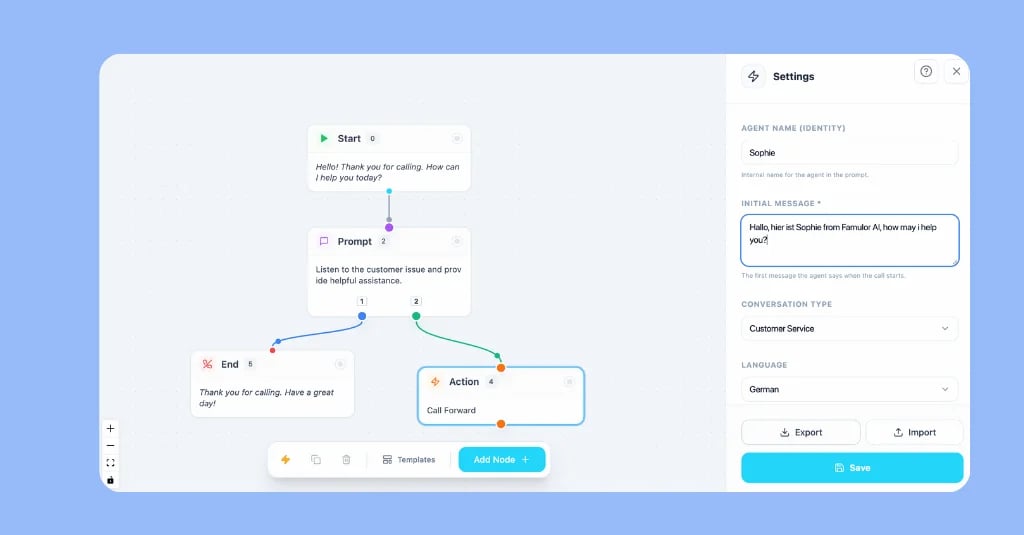
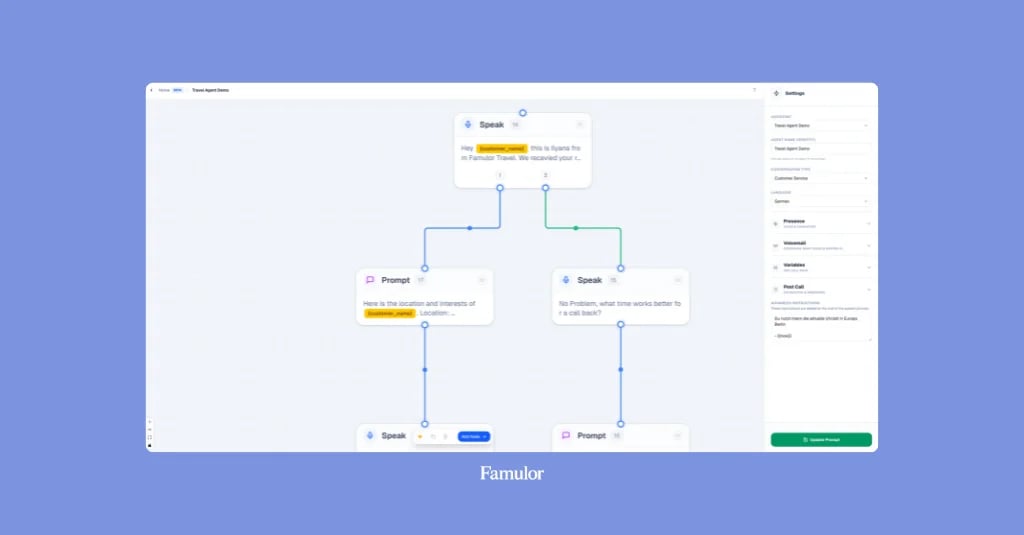
Imagine an infinite canvas where you design the perfect conversation. That's the core of the Famulor Flow Builder. The intuitive user interface consists of three main areas: the central canvas where you arrange your nodes, a toolbar for quick actions like adding or duplicating blocks, and a settings panel where you define your agent's personality and data interfaces.
However, the real heart of the system is the building blocks themselves—the nodes. Each node has a specific function and color, making navigation easy.
The Building Blocks of Conversation: The 5 Node Types Explained
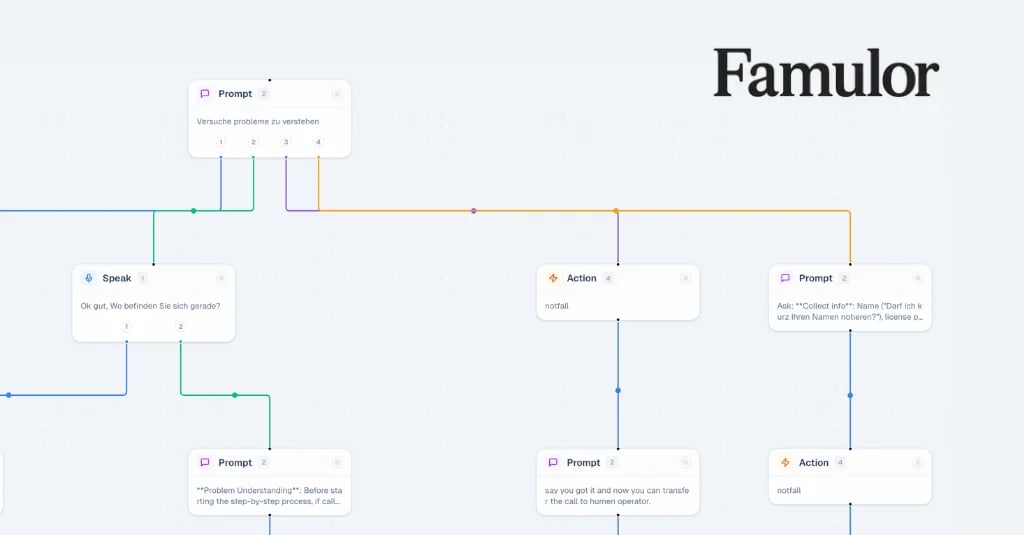
To master the Flow Builder, you need to understand its five fundamental building blocks. Each serves a unique purpose and, in combination, allows for the creation of highly complex yet natural dialogues.
| Node Type (Color) | Main Function | When to Use It |
|---|---|---|
| Start Node (Green) | Begins every conversation. | Mandatory for every flow; this is where the greeting is defined. |
| Speak Node (Blue) | Outputs a precisely predefined text. | For important information where every word counts (e.g., legal notices, price details, clear instructions). |
| Prompt Node (Purple) | Gives the AI flexible instructions. | For open-ended questions and dynamic parts of the conversation where the AI should respond naturally and contextually. This is the core of its intelligence. |
| Action Node (Orange) | Executes an action (e.g., API call, transfer). | To connect the agent to other systems, book appointments, update data in a CRM, or transfer calls to a human. |
| End Node (Red) | Ends the conversation. | To professionally conclude the call with a closing message or hand it off to another agent. |
The crucial difference for conversation quality often lies in choosing between a Speak Node and a Prompt Node. A Speak Node is like an actor delivering a fixed script—precise and controlled. A Prompt Node, on the other hand, is like an improv artist you give a stage direction to. It receives the goal (e.g., "Ask the customer for their email address and be extra friendly") and formulates the words itself based on the conversation so far. This flexibility makes the conversation more human and adaptable.
Step-by-Step: Creating an Intelligent Call Flow in 15 Minutes
Theory is good, but practice is better. Let's walk through a typical use case: An AI agent for a real estate agency needs to answer calls, pre-qualify leads, and, if there's interest, directly book a viewing appointment in the agent's calendar.
- Define the Goal: Clarify the objective. Inbound callers should be asked about their interest in a specific property, their contact details collected, and an appointment booked.
- Start in the Flow Builder: Open your assistant in Famulor and launch the Flow Builder. Begin with an empty flow containing only a Start Node.
- The First Handshake (Start Node): Configure the Start Node with a professional greeting: "Welcome to Dream Home Real Estate, my name is Alex. Are you calling about a specific property, or do you have a general question?"
- The Junction (Prompt Node): Add a Prompt Node and connect it to the Start Node. The instruction for the AI is: "Understand if the caller is interested in a specific property or has a general question. Respond with understanding and guide the conversation accordingly."
- Define Paths (Outcomes): On this Prompt Node, create three "outcomes": "Interest in Property," "General Question," and "Other." Each outcome appears as a colored dot on the node.
- Lead Qualification: Connect the "Interest in Property" outcome to another Prompt Node. Instruction: "Kindly ask the caller for their name, phone number, and email address so you can send them more information."
- The Magic (Action Node): Connect the previous node to an Action Node. Select "Book Appointment" as the action and link it to the responsible agent's calendar. The AI will now suggest appointments based on available slots.
- Complete the Other Paths: Connect the "General Question" outcome to an Action Node of the "Transfer Call" type to connect the caller with a human employee. Connect the "Other" outcome to a Speak Node ("I'm sorry, I didn't quite understand. I'll connect you with a colleague.") and transfer it as well.
- Professional Closing: Every path must have an end. After a successful appointment booking, add a Speak Node with a confirmation ("Thank you! I've booked the appointment for you and sent a confirmation to your email.") and connect it to an End Node.
- Fine-Tuning and Testing: In the settings panel, adjust the agent's personality (e.g., "friendly" and "professional"). Save the flow and make a test call to check all paths.
In just a few minutes, you have created a fully functional AI agent that handles a complex task autonomously. The real power lies in how such agents can not only talk but also act through API integrations.
Best Practices for Professional Conversation Flows
A powerful tool also requires thoughtful application. Here are some best practices to get the most out of the Famulor Flow Builder:
- Start Simple, Then Grow: Begin with a simple, linear conversation flow for the most common use case. Once it works smoothly, gradually add more branches and features.
- Use Prompt vs. Speak Strategically: Use Speak Nodes for consistency and control. Use Prompt Nodes to give the conversation a natural and human touch. A good mix is often the key.
- Think in Paths: Before building, sketch out the main conversation paths on paper: the ideal path ("Happy Path"), negative responses (e.g., "Not interested"), and neutral or unclear answers.
- Personalization is Key: Use variables (e.g.,
{customer_name}) to enrich the agent with data from your CRM. a personal greeting works wonders for customer loyalty. - Automate the Follow-Up: Define "Post-Call Fields" to extract important information from the conversation (e.g., "Interest in Product A," "Callback request"). Use this data to automatically trigger tasks in your CRM or helpdesk system.
- Plan for a Fallback: What happens if the AI repeatedly fails to understand the caller? Always define a safe exit, such as transferring to a human employee, to avoid frustration.
Avoiding Common Mistakes in Flow Design
The visual nature of the Flow Builder helps prevent many errors, but some common pitfalls still exist:
- Logical Infinite Loops: Avoid connecting nodes in a way that traps the caller in a loop they can't escape (e.g., A leads to B, and B leads back to A).
- Orphaned Paths (Dead Ends): Every path a conversation can take must end at an End Node or a final action (like a transfer). Open ends lead to abruptly terminated calls.
- Overloaded Prompts: Give the AI a clear, single task in a Prompt Node. Instructions like "Ask for the name, email, and reason for calling, then book an appointment" are too complex. Break this down into several sequential nodes.
- No Confirmations: When the AI agent performs an important action (e.g., a booking or data change), have it explicitly confirm this with the caller. This builds trust and clarity.
By following these principles, you can not only save costs but also maximize efficiency, as described in our guide "Voice AI Agents: How to Save Costs and Maximize Efficiency".
Conclusion: Conversation Automation Redefined—Intelligent, Visual, and No-Code
The Famulor Voice Agent Flow Builder is more than just a tool; it's a paradigm shift. It transforms the complex task of conversation design into a creative and accessible process. By shifting control from developers to business experts, it enables companies of all sizes to automate their customer communication in an agile, intelligent, and brand-consistent manner.
The ability to implement sophisticated logic, conditional branching, and integrations with third-party systems without a single line of code means faster time-to-value and lower total cost of ownership. You can react to market changes, optimize processes in real-time, and ensure a consistent, high-quality customer experience across all channels.
Are you ready to take control of your automated telephony and design conversations that delight your customers? Discover the possibilities of Famulor and book a personal demo today.
FAQ – Frequently Asked Questions about the Famulor Flow Builder
What is the main difference between a Speak Node and a Prompt Node?
A Speak Node delivers a precisely predefined text. It offers maximum control and is used for specific announcements. A Prompt Node gives the AI an instruction or a goal, and the AI then formulates the appropriate sentence based on the context. It offers more flexibility and ensures more natural dialogues.
Can I reuse a flow I created for other assistants?
Yes, the Famulor Flow Builder has an import/export function. You can export any flow as a JSON file and import it into another assistant. This is ideal for creating templates or backing up your work.
Do I need programming skills to use the Flow Builder?
No, absolutely not. The Flow Builder is a 100% no-code platform. If you can understand a flowchart, you can build intelligent AI agents with it. All actions and logic are configured via drag-and-drop and by filling in settings fields.
How do I connect the Flow Builder to my CRM system?
Connecting to external systems like a CRM is done via the Action Node. Famulor offers over 300 pre-built integrations in its internal automation platform. You can configure an Action Node to, for example, create a new contact in your CRM or retrieve customer data without leaving the Flow Builder.
What happens if I switch from the Flow Builder to the classic editor?
The visually created flow is saved in the background as a structured JSON file in the assistant's system prompt. If you switch to the classic editor, you will see this JSON data. It is recommended to work either in the Flow Builder or the classic editor to maintain consistency, but the visual representation in the Flow Builder is far more intuitive for most use cases.

Writer at Famulor