Summarize Content With:




The Next Level of AI Automation: How to Build Your Own Business Assistant with the Famulor MCP Server
Imagine you could simply ask your AI chatbot—whether it’s ChatGPT, Claude, or another large language model (LLM): “What was the last lead captured in my system?” Or you could tell it: “Find all ad agencies in Kempten and add them to my cold outreach campaign.” And the AI would just do it. No manual searching, no copy & paste, no clunky UI clicking. Just a single sentence in natural language that triggers a complex business action.
What sounds like science fiction is already reality. Most generic LLMs are brilliant at understanding and generating language, but they’re disconnected from your internal business processes and data. They can write a strategy—but they can’t execute it. That’s where the Famulor MCP (Model-Controller-Package) Server closes the gap. It acts as an intelligent bridge between the conversational capabilities of an LLM and the action-oriented power of the Famulor platform.
In this article, we’ll not only explain what the MCP Server is, but also walk you step by step through implementation. You’ll learn how to turn a standard chatbot into a proactive, task-driven assistant that performs real actions in your Famulor account—changing the way you work.
What Exactly Is the Famulor MCP Server and How Does It Work?
The Famulor MCP Server is an open-source middleware tool you can host yourself. Its core job is to expose Famulor platform capabilities—like listing leads, adding contacts to a campaign, or starting calls—as “tools” for a large language model. When you send a request to the LLM, a fascinating process happens in the background.
The Core Idea: From Intent to Action
The flow can be summarized in four steps:
Intent Detection: You enter a command in natural language, e.g., “Show me the latest lead from the campaign ‘Example Campaign’.” The LLM analyzes the sentence and understands your intent: you want specific data from your Famulor account.
Tool Selection: The LLM matches the detected intent with the tools the MCP Server provides. It identifies
Flist_leadsas the right tool to fulfill your request.Execution & Retrieval: The LLM creates a precise request to the MCP Server, including required parameters (e.g.,
campaign_name: "Example Campaign",per_page: 1). The MCP Server validates the call, securely communicates with your Famulor instance via the API, and receives the raw data (JSON format).Response Generation: The MCP Server passes the JSON response back to the LLM. The LLM interprets the structured data and converts it into an easy-to-read natural language answer: “The latest lead in your ‘Example Campaign’ is Example Lead with the email lead@example.com.”
This seamless flow transforms a passive conversation into an active, value-creating action. For a deeper dive into the underlying MCP concepts, see our intro article: Introduction to Famulor MCP functionality.
The Architecture in Detail
To understand why this is powerful, let’s look at the three main components:
The Large Language Model (LLM): This is the “brain.” It can be GPT-4, Claude 3, Google Gemini, or any model that supports function calling / tool use. Its job is to understand the user request, reason about it, and decide which tool to call with which parameters.
The Famulor MCP Server: This is the “central nervous system,” bridging the brain and the body. Hosted on your infrastructure, it provides a secure interface. It translates LLM tool calls into concrete API requests to Famulor—and back again. You fully control which functions you expose.
The Famulor Platform: This is the “body” that executes actions. Your data (leads, campaigns, call logs) lives here, and commands are carried out—adding contacts, starting outbound campaigns, or triggering workflows.
Hands-On Guide: Build Your Own Famulor Assistant
Now let’s get practical. Using the examples from the introduction, you’ll see how to configure and use your own assistant.
Step 1: Prerequisites and Setup
Before you start, you’ll need:
An active Famulor account with an API key.
Access to an LLM that supports tool use (e.g., via OpenAI or Anthropic APIs).
The Famulor MCP Server, which you can clone from GitHub.
Setup is straightforward: clone the server repo, install dependencies, and configure environment variables with your API keys. For the exact steps, see the README.md in the official GitHub repository.
Step 1a: Install MCP — Quick Start (Online) or Local Server
You can use the Famulor MCP Server in two ways: with no installation via the hosted online server or locally/self-hosted. Both options enable your LLM to call Famulor tools (e.g., start calls, manage assistants, fetch call transcripts).
Option 1 (Recommended): Online MCP Server — no local setup
If you want to get started fast, use the hosted MCP server:
Server: https://mcp.famulor.io
SSE Endpoint: https://mcp.famulor.io/sse
Health Check: https://mcp.famulor.io/health
Steps:
Create an API key: In your Famulor account, generate a new API key under API Keys and copy it.
Configure your MCP client: Depending on the client (ChatGPT Desktop, Cursor, Claude Desktop, Claude Code), add a small configuration (examples below).
Restart the client: Fully close and reopen so MCP loads.
Test: Ask something like “Show me my Famulor assistants” or “List my recent calls.”
Option 2: Run Your Own Local MCP Server (Self-Hosted)
If you prefer full control/on-prem, you can run the MCP server locally. Requirement: Node.js >= 20.
Steps:
Clone the repo:
git clone https://github.com/bekservice/Famulor-MCP.git && cd Famulor-MCPInstall dependencies:
npm installBuild:
npm run buildCreate an API key (as above), then configure your MCP client (below).
Restart the client and test.
Important: In your MCP configuration for the local server, always use an absolute path to dist/index.js (not relative). On Windows, prefer forward slashes or properly escaped backslashes.
Step 1b: MCP Client Configuration (ChatGPT Desktop, Cursor, Claude)
Depending on the client, the config file path and connection type differ. Here are ready-to-use examples with placeholders (replace your-api-key-here and paths as needed).
ChatGPT Desktop App
Config file:
macOS:
~/Library/Application Support/ChatGPT/mcp.jsonWindows:
%APPDATA%\\ChatGPT\\mcp.json(e.g.,C:\\Users\\YourUsername\\AppData\\Roaming\\ChatGPT\\mcp.json)Linux:
~/.config/ChatGPT/mcp.json
Online server example:
{"mcpServers":{"famulor":{"url":"https://mcp.famulor.io/sse","env":{"FAMULOR_API_KEY":"your-api-key-here"}}}}Local server example:
{"mcpServers":{"famulor":{"command":"node","args":["/absolute/path/to/Famulor-MCP/dist/index.js"],"env":{"FAMULOR_API_KEY":"your-api-key-here"}}}}Then fully quit and reopen ChatGPT Desktop.
Cursor
Online (HTTP/SSE) — recommended: In Cursor under Settings → Tools & Integrations → “New MCP Server” it typically opens ~/.cursor/mcp.json. Example:
{"mcpServers":{"famulor":{"type":"http","url":"https://mcp.famulor.io/sse","headers":{"Authorization":"Bearer your-api-key-here"}}}}Local (command):
{"mcpServers":{"famulor":{"command":"node","args":["/absolute/path/to/Famulor-MCP/dist/index.js"],"env":{"FAMULOR_API_KEY":"your-api-key-here"}}}}Then refresh MCP in Cursor or restart Cursor.
Claude Desktop
Note: Claude Desktop typically supports command-based MCP server configuration (local), not URL/HTTP (depending on version/setup). Config file:
macOS:
~/Library/Application Support/Claude/claude_desktop_config.jsonWindows:
%APPDATA%\\Claude\\claude_desktop_config.jsonLinux:
~/.config/Claude/claude_desktop_config.json
Example:
{"mcpServers":{"famulor":{"command":"node","args":["/absolute/path/to/Famulor-MCP/dist/index.js"],"env":{"FAMULOR_API_KEY":"your-api-key-here"}}}}Then fully restart Claude Desktop.
Claude Code (Terminal)
Online:
claude mcp add-json "famulor" "{\"type\":\"http\",\"url\":\"https://mcp.famulor.io/sse\",\"headers\":{\"Authorization\":\"Bearer your-api-key-here\"}}"Local:
claude mcp add-json "famulor" "{\"command\":\"node\",\"args\":[\"/absolute/path/to/Famulor-MCP/dist/index.js\"],\"env\":{\"FAMULOR_API_KEY\":\"your-api-key-here\"}}"Security (don’t skip)
Never commit API keys: your MCP config containing an API key must not go into Git.
Never share your API key (also not in screenshots/support logs).
If possible, set the key as an environment variable and remove it from JSON (depending on client/setup).
Quick Troubleshooting Checklist
“Server not found”: ensure
npm run buildran anddist/index.jsexists; path must be absolute.“API key error”: verify the key is correct and valid.
“MCP server not recognized”: validate JSON, fully restart the client, check logs.
Node version:
node --versionmust be >= 20 (for local).
Try our AI Assistant
Experience how natural our AI phone assistant sounds.
Enter your details and receive a call from our AI agent within seconds.
Agent is trained to discuss Famulor services and book appointments.

Demo AI agent
Famulor representative
Step 2: Use Case 1 — Query the Latest Lead
This is the classic data retrieval case. You want quick information without clicking through menus.
Your request to the assistant:what was last lead bei famulor?
LLM reasoning:
“The user wants the ‘last lead’. That implies chronological ordering and limiting to one result. I have a tool named Flist_leads. To get only the newest lead, I’ll call it with page: 1 and per_page: 1.”
The resulting function call (sent to the MCP server):
Request{`page`:1,`per_page`:1}The Famulor API response (returned by the MCP server):
Response{"current_page":1,"data":[{"id":1234567,"customer_name":"Example Lead","email":"lead@example.com","campaign":{"name":"Example Campaign"}}]}The final human-readable answer:
“I’m checking the latest lead in your Famulor account. The latest lead is Example Lead from the ‘Example Campaign’ campaign.”
This simple dialog demonstrates a fundamental shift: you interact with business data as naturally as with a human colleague.
Step 3: Use Case 2 — Research Leads and Add Them to a Campaign
This use case goes far beyond simple retrieval and shows the real power of automation by chaining tools.
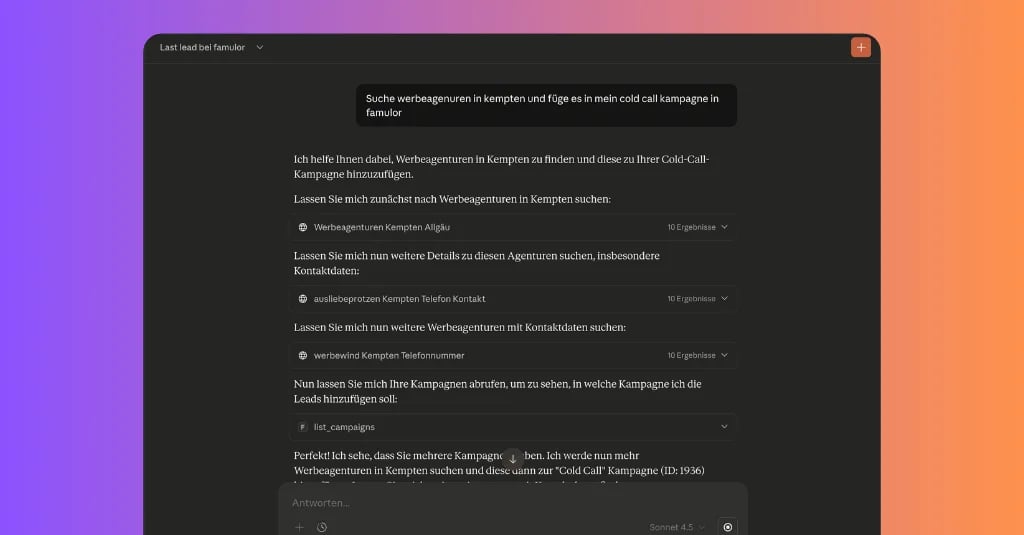
Your request to the assistant:Find ad agencies in Kempten and add them to my cold-call campaign in Famulor.
LLM reasoning:
“This is a two-step task. First, I need to find ‘ad agencies in Kempten’. That requires a web search tool (assuming it was added to the MCP server). Second, for each result I must use Fadd_lead to add it to the ‘Cold Call’ campaign. I need to extract information like company name and phone number and map it to the right parameters.”
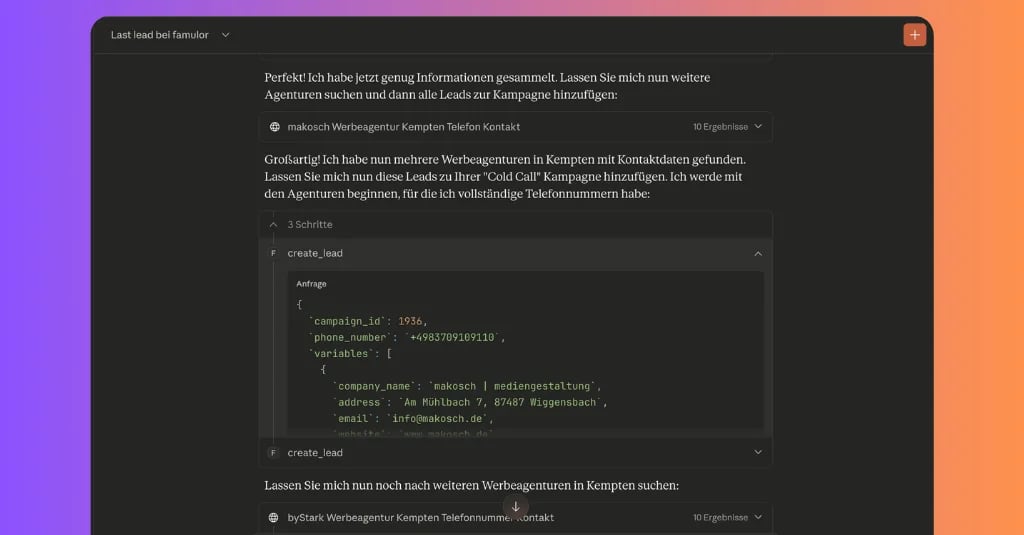
Conceptual sequence of tool calls:
Web search: The LLM calls a (hypothetical)
WebSearchtool withquery="ad agencies with phone numbers in Kempten".Data extraction: From the results, the LLM extracts a list of agencies with names and contact details.
Add leads: For each entry, the LLM loops and repeatedly calls
Fadd_lead:Fadd_lead(campaign_name="Cold Call", variables={"customer_name":"Agency A","phone_number":"+49..."})Fadd_lead(campaign_name="Cold Call", variables={"customer_name":"Agency B","phone_number":"+49..."})...and so on.
The final human-readable answer:
“I found several ad agencies in Kempten and successfully added them to your ‘Cold Call’ campaign. The campaign is ready to start.”
This shows the true strength: automating research, data preparation, and system entry from a single sentence. It’s a great example of deep integrations that go far beyond superficial small talk.
The Key Advantage: Unlimited Possibilities Through Deep Integration
The real magic of the Famulor MCP Server isn’t just executing predefined actions—it’s the unlimited extensibility and integration with the broader Famulor ecosystem.
From actions to complex workflows:
Behind every function like Fadd_lead, Famulor can run a full automation workflow. Adding a lead could automatically send a confirmation email, create a CRM task, notify a salesperson in Slack, and schedule a first intro call for the next day. Your voice-driven assistant becomes a trigger for company-wide processes—similar to what becomes possible by connecting with platforms like Make.com.
Full control and security:
Because the MCP server is open source and self-hosted, you stay in control. You decide what your AI assistant is allowed to do. You can restrict it to read-only operations or allow data changes. All data flows through your infrastructure and is secured via your Famulor API key.
Extensible across your entire tool stack:
The MCP server isn’t limited to Famulor functions. You can extend it to provide tools for any system with an API: your CRM, calendar, project management tool, or internal databases. Your assistant can become the central, voice-driven hub for your business.
Conclusion: Welcome to the Era of Acting AI
The Famulor MCP Server marks the end of isolated AI applications. It bridges modern LLM language capability with real, value-creating actions that move your business forward. Instead of just delivering information, AI becomes an active participant in your processes.
Automating routine tasks, accelerating research and data entry, and creating a natural interface to your systems is no longer a distant vision. With Famulor, you can use a powerful AI voice agent platform not only for calling, but also as the backbone of internal automation.
Ready to take your team’s productivity to the next level and build your own tailored AI business assistant? Explore the Famulor MCP Server on GitHub and contact us to learn how Famulor can become the central automation platform for your entire business communication.
FAQ — Frequently Asked Questions About the Famulor MCP Server
What is the Famulor MCP Server?
The Famulor MCP Server is an open-source middleware bridge between large language models (LLMs like ChatGPT or Claude) and your Famulor account. It enables the LLM to execute actions—like querying data or adding leads—directly in the Famulor platform via natural language.
Do I need programming skills to use the MCP Server?
For initial setup and configuration, basic technical knowledge is helpful (GitHub, command line, environment variables). To extend the server with custom tools, you’ll typically need programming skills (commonly JavaScript/TypeScript for this repo). Day-to-day use of the configured assistant, however, happens purely through natural language and does not require programming.
Which LLMs are compatible with the MCP Server?
Any modern model that supports “tool use” or “function calling” is compatible. This includes OpenAI’s GPT models, Anthropic’s Claude models, and Google’s Gemini.
Is using the MCP Server secure?
Yes. Because you host the server in your own infrastructure, you control data flow and security. You decide which functions are exposed to the AI, and communication with Famulor is handled via your secured API key.
Can I connect tools other than Famulor?
Absolutely. One of the biggest advantages of an open-source MCP server is extensibility. You can add tools for any application with an API—your CRM (e.g., Salesforce, HubSpot), calendar (Google Calendar, Outlook), or internal systems—turning your assistant into a central control layer for many workflows.

Writer at Famulor