Résumer le contenu avec:




Centre d'appels Famulor AI : utilisez Famulor AI au sein de Make.com
Nous avons intégré Famulor via Make.com, ce qui signifie que vous pouvez désormais orchestrer l'automatisation vocale par IA de Famulor directement dans vos scénarios Make. Dans cet article, vous découvrirez ce qu'est Famulor, ce que permet l'intégration Make.com et comment démarrer en quelques minutes.
Qu'est-ce que Famulor ?
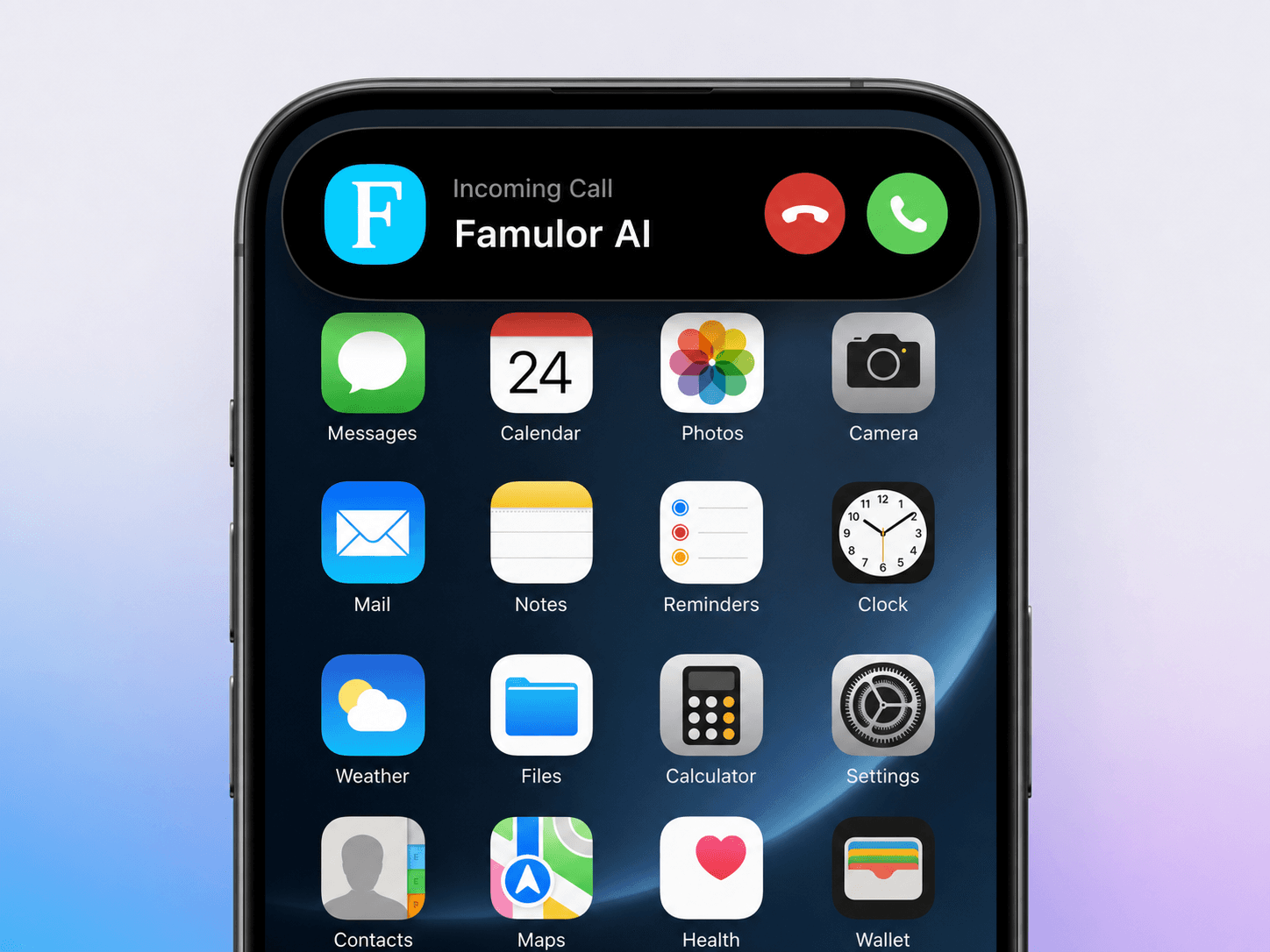
Famulor est une plateforme d'automatisation vocale qui utilise l'IA pour gérer les appels téléphoniques en temps réel. Vous pouvez créer des assistants IA pour les appels entrants et sortants, les connecter à vos outils métier et automatiser vos workflows de communication de bout en bout.
Comment accéder à Famulor dans Make.com
Pour commencer à utiliser Famulor dans Make.com, ouvrez le lien d'invitation de l'application et ajoutez Famulor à votre compte Make :
Accéder à Famulor sur Make.com
Pourquoi connecter Famulor à Make.com ?
Make.com excelle dans la connexion d'applications et l'automatisation de processus. En le combinant avec Famulor, votre centre d'appels devient un moteur de workflow entièrement automatisé :
Déclenchez des actions de suivi dès la fin d'un appel IA
Envoyez les transcriptions d'appels vers votre CRM ou votre système de ticketing
Informez vos équipes sur Slack/Teams avec des résumés et des données extraites
Lancez automatiquement des appels sortants basés sur des événements (leads, paiements, rendez-vous)
Fonctionnalités de l'intégration
🔗 Connexion
Authentification par clé API : connectez-vous en toute sécurité à l'aide de votre clé API Famulor
Trouvez votre clé API dans votre tableau de bord Famulor sous Paramètres → Clés API
📞 Déclencheurs
Appel terminé : déclenchez automatiquement des workflows lorsque les appels IA se terminent
Recevez les transcriptions d'appels, les variables extraites, la durée et plus encore
⚡ Actions
Passer un appel : initiez des appels IA vers des numéros de téléphone spécifiques
Appel API : les utilisateurs avancés peuvent appeler directement n'importe quel endpoint de l'API Famulor
🔍 Recherche
Obtenir des assistants : recherchez et listez vos assistants IA disponibles
Démarrage rapide (3 étapes)
Accédez à l'application Famulor dans Make.com : cliquez sur le lien d'invitation et ajoutez Famulor à votre compte Make : https://www.make.com/en/hq/app-invitation/5dc7ab8bf7bbe546f4ad7eb1483a820f
Obtenez votre clé API : connectez-vous au tableau de bord Famulor et créez une clé API.
Créez la connexion : dans Make.com, ajoutez une nouvelle connexion Famulor et collez votre clé API. Utilisez ensuite Appel terminé pour recevoir les résultats des appels (transcription, variables, durée).
Exemples de workflows que vous pouvez créer
Qualification de leads : après la soumission d'un formulaire sur votre site, déclenchez un appel IA et enregistrez les résultats dans votre CRM.
Rappels de rendez-vous : appelez automatiquement vos clients et mettez à jour le statut des rendez-vous en fonction de leur réponse.
Recouvrement et confirmations : passez des appels sortants, extrayez les données de confirmation et informez vos équipes financières.
Triage du support : à la fin de l'appel, créez un ticket avec la transcription et l'intention extraite par l'IA.
Estimez votre ROI en automatisant vos appels
Voyez combien vous pourriez économiser chaque mois grâce aux voice agents IA.
Résultat ROI
ROI 0%
Sans carte bancaire
Prêt à automatiser votre centre d'appels ?
Avec Famulor dans Make.com, vos assistants IA deviennent des briques essentielles pour une automatisation puissante, du premier contact aux actions de suivi, entièrement connectés à votre stack technologique existante.
Rédacteur chez Famulor