Résumer le contenu avec:




Omnichannel AI Agent Flow Builder de Famulor : concevez des dialogues intelligents sans une seule ligne de code
Dans la communication client actuelle, la réussite se joue à la milliseconde près. Les menus téléphoniques rigides (« Tapez 1 pour... »), les chatbots basiques qui ne reconnaissent que des mots-clés et les expériences incohérentes d'un canal à l'autre engendrent frustration, taux d'abandon élevés et, in fine, perte de revenus. Les entreprises font face au défi de concevoir des dialogues complexes, personnalisés et efficaces qui s'intègrent parfaitement à leurs processus métier, souvent sans disposer des ressources de développement ou de l'expertise technique nécessaires.
C'est là qu'intervient le Omnichannel AI Agent Flow Builder de Famulor. Il ne s'agit pas d'un simple outil supplémentaire, mais d'un changement de paradigme : on délaisse les scripts textuels rigides au profit d'une méthode visuelle, dynamique et intuitive pour concevoir des flux de conversation intelligents. Grâce à une interface en glisser-déposer, Famulor permet aux experts des ventes, du service client et du marketing de créer des agents IA sophistiqués qui agissent de manière cohérente et intelligente par téléphone, via le live chat et sur WhatsApp. Ce guide vous montre comment reprendre le contrôle de votre communication client et parvenir à une véritable automatisation avec le Flow Builder.
Qu'est-ce qu'un No-Code Flow Builder et pourquoi est-ce révolutionnaire ?
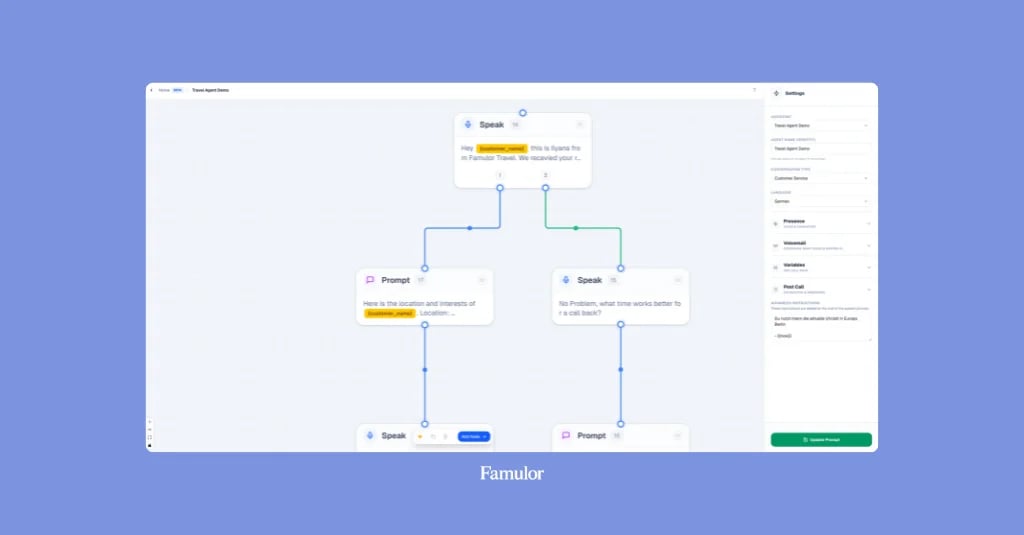
Un no-code flow builder est un environnement de développement visuel qui permet aux utilisateurs de créer des logiques et des flux de processus complexes en connectant des blocs prédéfinis (appelés « nœuds ») sur une interface graphique. Au lieu d'écrire du code, vous faites simplement glisser et déposer des éléments sur un « canevas » et définissez la manière dont le système doit réagir aux divers événements et saisies des utilisateurs.
Pour la communication client assistée par IA, cette approche est révolutionnaire car elle démocratise la création d'agents IA :
Rapidité : Des prototypes et des agents prêts à l'emploi peuvent être créés en quelques heures au lieu de semaines ou de mois.
Agilité : Les ajustements des flux de conversation peuvent être effectués en temps réel par les départements concernés sans attendre l'équipe informatique.
Rentabilité : Les ressources coûteuses des développeurs sont libérées pour des tâches plus stratégiques tandis que l'automatisation des processus monte en puissance.
Transparence : La logique complexe des conversations est visualisée sous forme de diagramme facile à comprendre, ce qui simplifie grandement la collaboration et le débogage.
Avec le Flow Builder de Famulor, créer un assistant téléphonique intelligent ou un agent de chat dynamique devient aussi simple que de dessiner un organigramme. Apprenez-en plus dans notre guide sur la création d'agents IA de chat et vocaux sans code.
L'anatomie du Flow Builder de Famulor : les briques élémentaires des dialogues intelligents
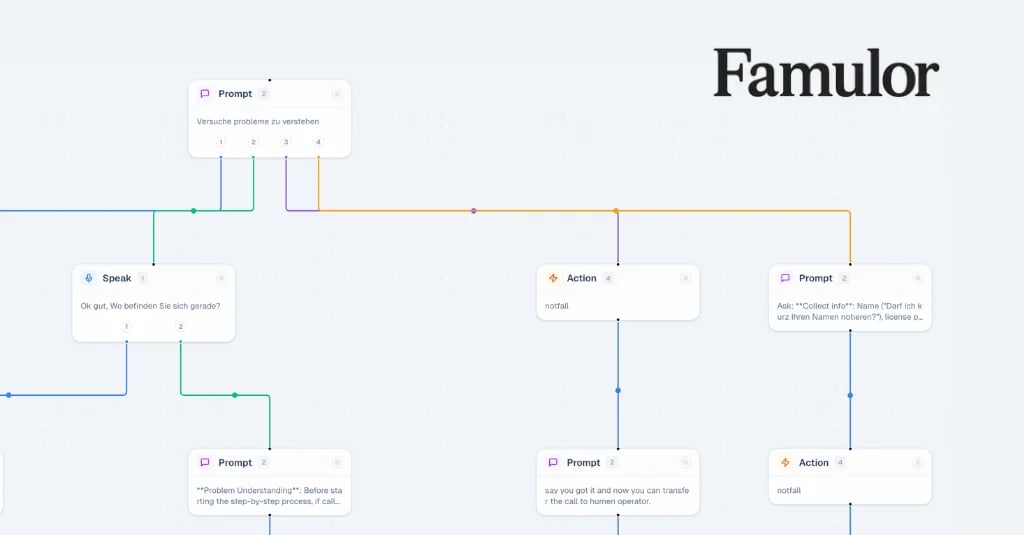
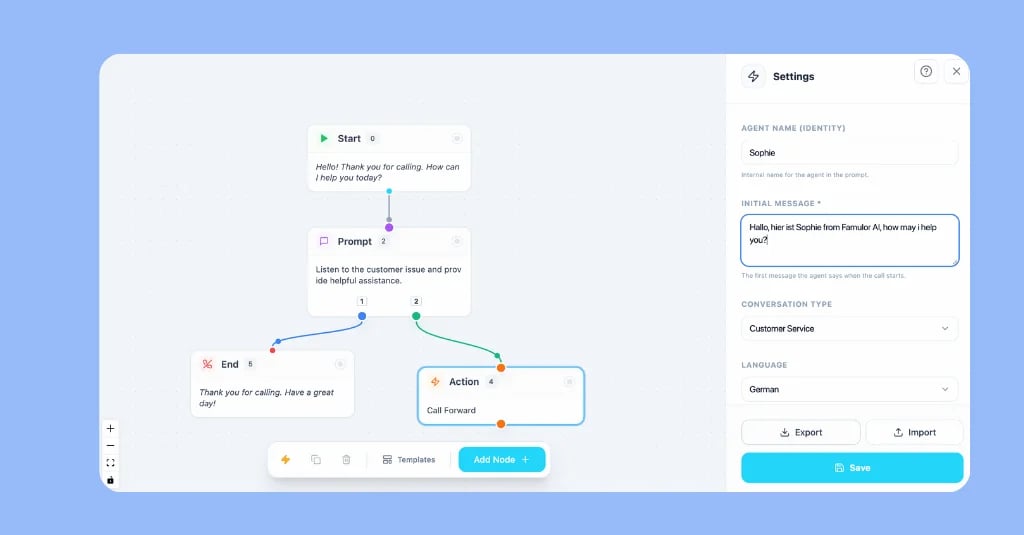
Le cœur du Flow Builder se compose de différents types de nœuds. Chaque nœud représente une action spécifique ou un point de décision dans la conversation. En les combinant, vous pouvez créer des parcours de dialogue dynamiques et ramifiés qui vont bien au-delà des scripts linéaires.
1. Le nœud de début (vert) : le point de départ de chaque conversation
Chaque flux commence par le nœud de début. C'est le point d'entrée immuable de chaque interaction, qu'il s'agisse d'un appel entrant ou d'un nouveau chat web. Ici, vous définissez le tout premier message que l'agent IA utilise pour accueillir le client. Un bon accueil est court, clair et instaure immédiatement la confiance.
Exemple : « Bienvenue chez Mustermann GmbH. Je suis votre assistant numérique. Comment puis-je vous aider aujourd'hui ? »
2. Le nœud de parole (bleu) : des annonces précises et contrôlées
Le nœud de parole est utilisé lorsque l'agent IA doit énoncer un texte prédéfini avec exactitude. C'est crucial pour les mentions légales, les consentements relatifs à la protection des données ou les informations standardisées où aucune interprétation par l'IA n'est permise.
Exemple : « Pour garantir la qualité et améliorer notre service, cet appel peut être enregistré. Êtes-vous d'accord ? »
3. Le nœud de prompt (violet) : le cerveau de l'agent IA
Le nœud de prompt est la brique la plus flexible et la plus puissante. Au lieu d'un texte fixe, vous donnez à l'IA une instruction (un « prompt ») sur ce qu'elle doit accomplir. L'IA génère alors une réponse naturelle et contextuelle. C'est ici que la véritable intelligence de votre agent se déploie.
Exemple de prompt : « Interrogez le client sur son problème. Soyez amical et empathique. Essayez de déterminer s'il s'agit d'une commande existante, d'une nouvelle demande ou d'une question de support. »
4. Le nœud d'action (orange) : là où la magie opère
Une conversation n'a de valeur que si elle débouche sur une action. Le nœud d'action est le pont vers vos systèmes et processus internes. Il peut déclencher des actions spéciales qui vont au-delà de la simple parole :
Transférer l'appel : Transfère l'appel vers un département spécifique ou un collaborateur humain.
Prendre rendez-vous : Accède à un calendrier connecté (par exemple Calendly) et réserve un créneau disponible.
Action personnalisée : Déclenche un flux de travail dans plus de 300 outils connectés, de la création d'un ticket dans Jira à la mise à jour d'un profil client dans Salesforce. La vraie valeur est créée grâce à ces intégrations poussées.
5. Le nœud de fin (rouge) : la conclusion de l'interaction
Chaque chemin de votre flux doit se terminer par un nœud de fin. Cela met fin à l'appel ou au chat, transfère vers un autre numéro ou passe la main à un autre assistant IA. Une clôture propre laisse une impression finale professionnelle.
Exemple : « Merci pour votre appel. Je vous ai envoyé la confirmation de rendez-vous par e-mail. Excellente journée à vous ! »
Essayez notre Assistant IA
Découvrez à quel point notre assistant téléphonique IA sonne naturel.
Entrez vos coordonnées et recevez un appel de notre agent IA en quelques secondes.
L'agent est formé pour parler des services Famulor et prendre des rendez-vous.

Agent IA de démo
Représentant Famulor
Étape par étape : créez votre premier agent omnicanal
La théorie est claire, mais la force du Flow Builder réside dans son application pratique. Suivez ces étapes pour créer un agent IA fonctionnel pour la qualification de rendez-vous en moins d'une heure.
Étape 1 : Conception et définition des objectifs
Que doit faire exactement votre agent ? Esquissez le flux de conversation idéal.
Objectif : Réserver un rendez-vous qualifié pour une démonstration de produit.
Informations clés : Nom, entreprise, e-mail, intérêt de base.
Résultats possibles : Rendez-vous réservé, demande de rappel, aucun intérêt, mauvais interlocuteur.
Étape 2 : Construction de la structure de base sur le canevas
Ouvrez le Flow Builder de Famulor et faites glisser les nœuds de base sur l'espace de travail :
Un nœud de début avec un accueil ouvert (« Bienvenue chez Famulor, comment puis-je vous aider ? »).
Un nœud de prompt qui clarifie l'intention de l'utilisateur (« Déterminez si l'appelant est intéressé par une démonstration de notre logiciel »).
Plusieurs nœuds vides pour les différents résultats (par exemple, un nœud d'action pour « Prendre rendez-vous », un nœud de parole pour « Confirmer le rappel », un nœud de fin pour « Aucun intérêt »).
Cette approche visuelle a été présentée dans notre article sur la transition d'une commande unique vers un dialogue intelligent et constitue la base de flux de travail complexes.
Étape 3 : Définition de la logique et des branches avec les « résultats »
Cliquez sur votre premier nœud de prompt. Dans le panneau des paramètres, ajoutez des « résultats ». Nommez-les « Intéressé », « Incertain » et « Pas intéressé ». Trois points colorés apparaîtront alors sur votre nœud. Connectez chaque point au nœud suivant correspondant :
Connectez « Intéressé » au nœud d'action « Prendre rendez-vous ».
Connectez « Incertain » à un autre nœud de prompt (« Expliquez brièvement le principal avantage et demandez une heure appropriée pour un court rappel »).
Connectez « Pas intéressé » au nœud de fin (« Merci pour votre temps. Au revoir. »).
Étape 4 : Connexion des actions et intégrations système
Sélectionnez le nœud d'action « Prendre rendez-vous ». Configurez-le pour qu'il se connecte à votre calendrier. Définissez quelles informations (nom, e-mail) doivent être incluses dans l'invitation au rendez-vous. L'agent peut demander ces données lors de l'étape de conversation précédente et les stocker dans des variables.
Pour la demande de rappel, vous pouvez définir une action qui crée une tâche dans votre CRM ou un message dans votre canal Slack interne via un webhook.
Étape 5 : Test, itération et déploiement sur tous les canaux
Avant que l'agent ne soit mis en ligne, testez-le minutieusement. Passez des appels de test et parcourez tous les scénarios possibles. Analysez les transcriptions : les réponses de l'agent étaient-elles naturelles ? A-t-il capturé toutes les informations correctement ? Ajustez vos prompts en fonction de ces résultats.
Le meilleur dans tout ça : une fois votre flux perfectionné pour le canal téléphonique, vous pouvez activer le même agent IA pour le chat de votre site web ou même pour WhatsApp en quelques clics. La logique reste la même, garantissant une expérience client cohérente.
Bonnes pratiques pour des flux de conversation exceptionnels
Un outil puissant nécessite aussi du savoir-faire. Voici quelques bonnes pratiques pour tirer le meilleur parti du Flow Builder de Famulor :
Commencez simplement : Construisez d'abord un flux minimal mais fonctionnel (MVP) et ajoutez progressivement de la complexité.
Utilisez les nœuds de prompt pour la flexibilité : Laissez à l'IA de la place pour des réponses naturelles. Les nœuds de parole doivent être l'exception pour les textes fixes.
Prévoyez les erreurs : Que se passe-t-il si l'agent ne comprend pas le client trois fois ? Définissez un chemin de « secours » qui mène à un collaborateur humain.
Pensez en termes de résultats : Planifiez chaque résultat de conversation possible et connectez-le à une action significative.
Visualisez les flux de données : Utilisez des variables pour transmettre des informations (par exemple, l'ID client) d'un nœud à l'autre et envoyez-les finalement à votre CRM.
Testez, testez, testez : Menez de vraies conversations de test pour vérifier la qualité du dialogue avant de laisser l'agent interagir avec vos clients.
La capacité à construire de tels systèmes intelligents transforme les centres de coûts traditionnels comme un centre d'appels en une solution IVR intelligente qui contribue activement à la réussite de l'entreprise.
Conclusion : façonnez l'avenir de votre communication client, visuellement et intelligemment
L'Omnichannel AI Agent Flow Builder de Famulor est plus qu'un simple outil de gestion d'appels. C'est une plateforme stratégique qui permet aux entreprises de prendre le contrôle de l'ensemble de leur communication client. Grâce à son interface visuelle sans code, les automatisations complexes deviennent accessibles, agiles et transparentes.
Vous n'êtes plus dépendant de scripts rigides et de cycles de développement coûteux. Au lieu de cela, vous pouvez créer des agents IA intelligents, sensibles au contexte et intégrés aux processus qui ravissent vos clients, soulagent vos employés et augmentent votre efficacité. Concevez un dialogue intelligent une fois et déployez-le sur tous les canaux : c'est là le vrai sens de l'omnicanalité. Commencez dès aujourd'hui à transformer votre vision d'une communication client parfaite en réalité.
Foire aux questions (FAQ)
Qu'est-ce qu'un AI Agent Flow Builder ?
Un AI Agent Flow Builder est un outil visuel qui vous permet de créer des flux de conversation pour des assistants IA (pour le téléphone, le chat, etc.) en utilisant le glisser-déposer. Au lieu d'écrire du code, vous connectez des blocs graphiques pour définir la logique, les actions et les chemins de dialogue.
Ai-je besoin de compétences en programmation pour utiliser le Flow Builder de Famulor ?
Non. Le Flow Builder de Famulor est une plateforme entièrement no-code. Vous n'avez besoin d'aucune compétence en programmation. Toute personne ayant une compréhension des processus et des interactions client peut l'utiliser pour créer des agents IA puissants.
Que signifie « omnicanal » dans le contexte du Flow Builder ?
Omnicanal signifie que vous concevez un flux de conversation une fois dans le Flow Builder et que vous pouvez ensuite déployer cet agent IA sur divers canaux de communication comme le téléphone (voix), le chat de site web (texte) et WhatsApp pour garantir une expérience client cohérente.
Puis-je connecter des systèmes existants comme mon CRM au Flow Builder ?
Oui. Le Flow Builder est conçu pour des intégrations poussées. Grâce aux nœuds d'action et à la plateforme d'automatisation interne, vous pouvez connecter plus de 300 outils, y compris les CRM courants, les helpdesks, les calendriers et plus encore, pour échanger des données et déclencher des processus.
En quoi le Flow Builder diffère-t-il de l'éditeur de prompt classique ?
L'éditeur classique est bien adapté aux conversations simples et linéaires pilotées par une instruction IA unique. Le Flow Builder est idéal pour les dialogues complexes à plusieurs étapes avec des branches, des conditions et diverses actions, où vous avez besoin d'un contrôle total sur chaque étape de la conversation.

Rédacteur chez Famulor