Summarize Content With:




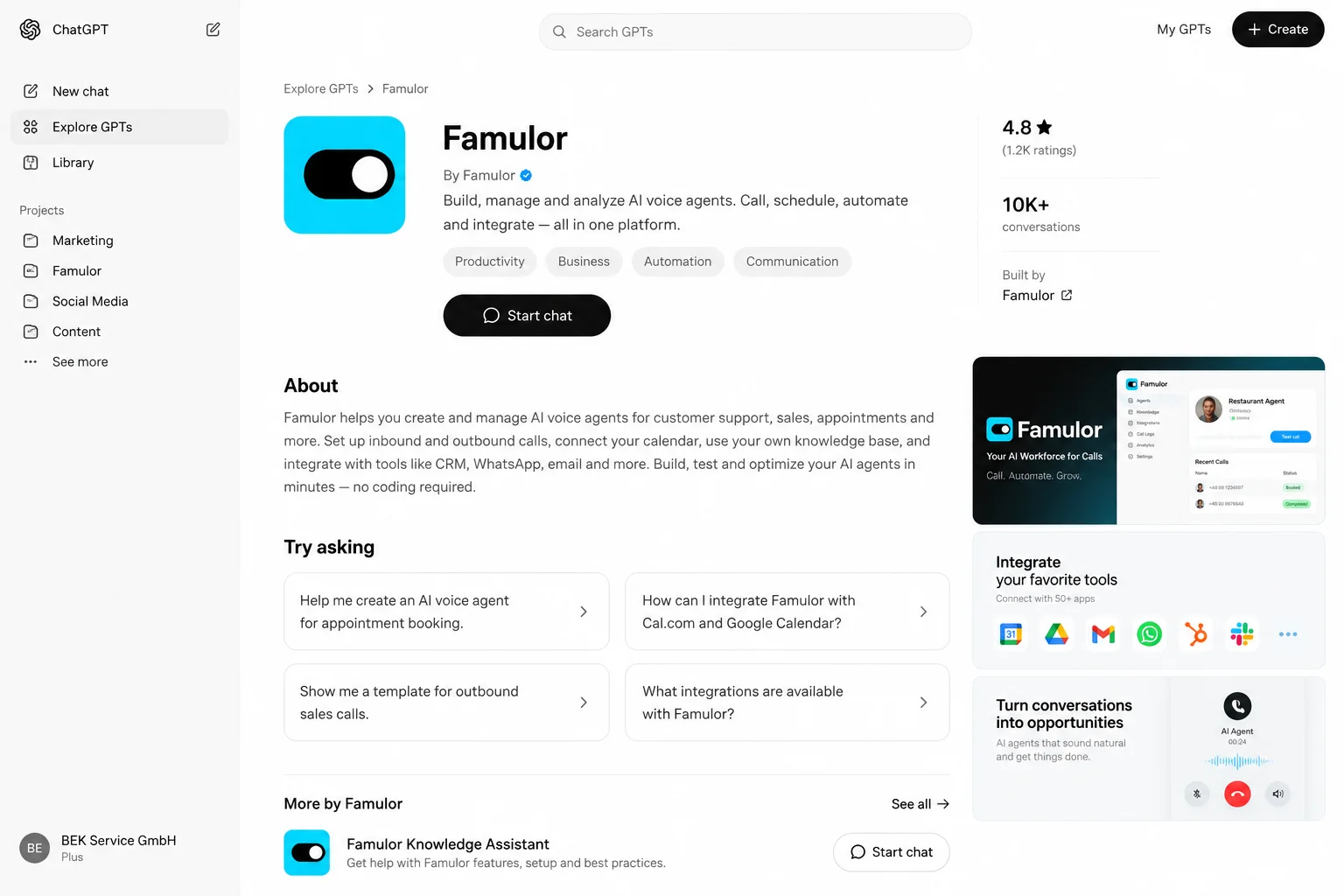
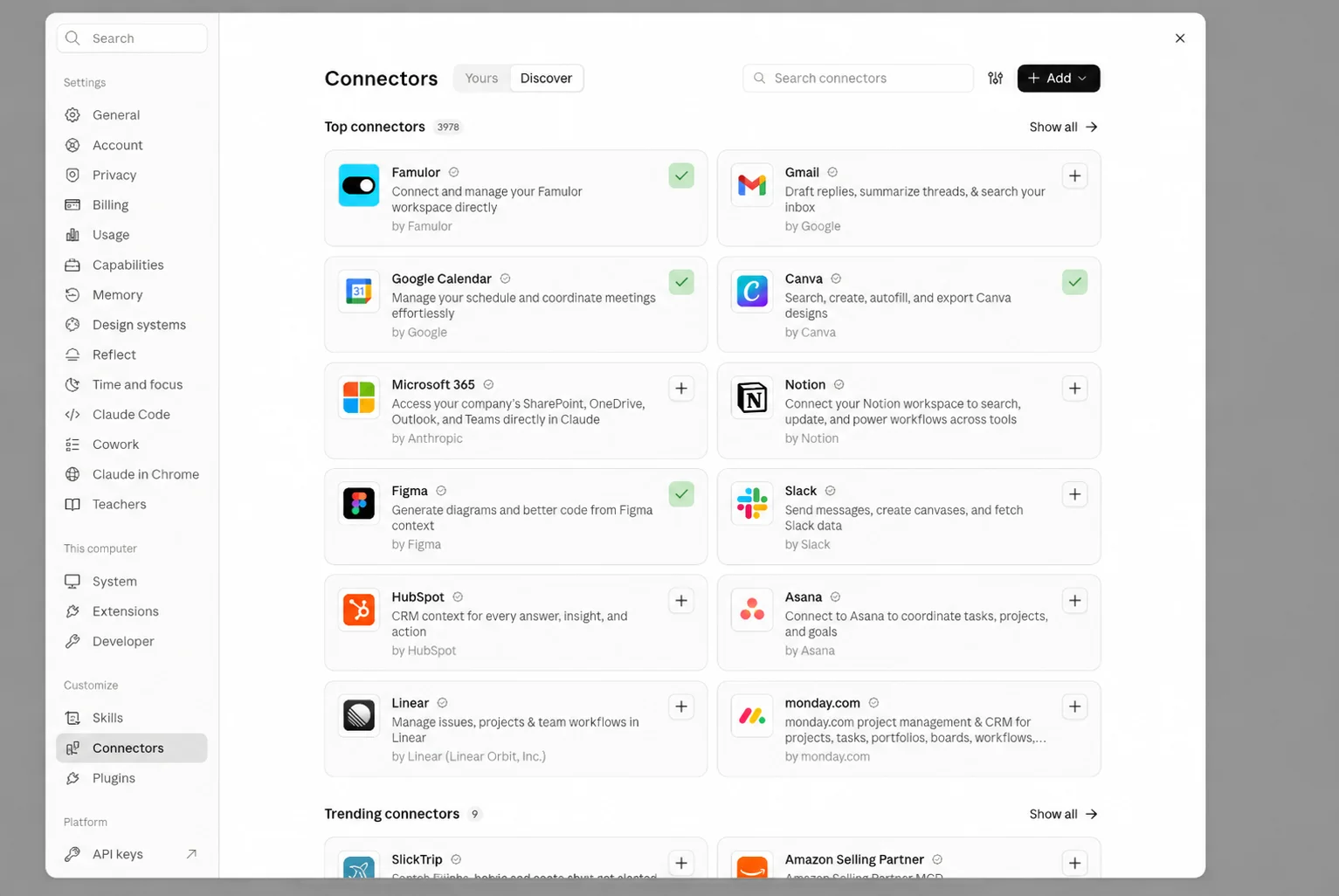
Voice AI teams often work across two separate environments. Famulor holds assistants, configurations, and conversation history, while Claude is where teams analyze, summarize, and develop improvement ideas. The new official directory listing connects those environments: Famulor is now listed in the Claude Marketplace—more precisely, in Anthropic's Connectors Directory.
The important change is not only shorter setup. The reviewed directory connector has a deliberately narrow read-only profile. It can retrieve assistant information and conversation history, but it cannot change assistants, place calls, or launch campaigns. That makes it a practical starting point for review, QA, and analysis. Workflows that write to the workspace still require a separately configured custom connector with explicitly approved permissions.
Key points
- Famulor is available through the official Claude directory listing.
- The connection reads assistant information and conversation history; it does not change workspace data.
- Anthropic documents remote connectors across Claude, Cowork, Claude Desktop, Claude Code, and Claude mobile apps, subject to account and organization settings.
- Setup uses Connect, a Famulor sign-in, and a visible consent step.
- For changes, campaigns, or other actions, use a separate custom connector and grant only the permissions the workflow needs.
Marketplace or Connectors Directory?
Many users call it the “Claude Marketplace.” Anthropic's official term is Connectors Directory, now part of a unified directory for skills, connectors, and plugins. The official directory guide routes users through Customize → Connectors → Discover.
The label matters less than the distinction between the two connection paths:
| Connection | Best for | Access |
|---|---|---|
| Famulor from Claude's directory | Fast, reviewed onboarding for analysis and review | Read-only assistant information and conversation history |
| Custom connector through Famulor MCP | Broader, deliberately configured operations | Only the tool groups selected and approved during setup |
This article focuses on the new directory listing. It does not replace the broader Famulor MCP operations guide. It answers a narrower question: what can teams do safely and usefully with the reviewed read-only connection available from the directory?
Where the Famulor connector is available
Anthropic describes directory connectors as remote connectors. Its current connector overview says connectors work across Claude, Cowork, Claude Desktop, Claude Code, and the API. Its web-versus-desktop connector guide also lists web and mobile among the surfaces for remote connectors.
This does not guarantee that every account shows the same button. Availability and installation can depend on the Claude product, account type, workspace policy, and organization approval. On Team and Enterprise workspaces, an owner may first need to enable the connector for the organization. Individual members still authenticate with their own Famulor accounts afterwards.
What the reviewed connector can actually read
Famulor documents the directory listing as its Public Directory Profile. According to the current tools and scopes documentation, the profile is limited to two areas:
- assistant information
- conversation history, including available history and transcripts
You can use that access to review a support assistant's configuration, summarize previous conversations by topic, or identify recurring questions. Results still depend on the data your signed-in Famulor account is allowed to access.
What the profile excludes is equally important. Famulor states that the directory profile cannot:
- create, change, or delete assistants
- place outbound calls
- start or manage campaigns
- send messages
- manage phone numbers
- manage billing data
- configure integrations
- discover or expand tool groups
This boundary is part of the security model. Claude can assist with a review, but the reviewed directory connection cannot implement a change in the production voice AI system.
How to connect Famulor to Claude
Famulor's AI client documentation describes three steps:
- Open the Famulor listing in Claude's directory and choose Connect.
- Sign in to your Famulor account and review the requested access.
- Approve only the access needed for the intended review, then start a new Claude conversation.
You can also reach the choice from Connect in Famulor's sidebar or Use with ChatGPT & Claude on the dashboard. The workspace plan must include Connect AI / MCP.
Compatible clients start OAuth sign-in automatically. The consent screen shows the requested access before any data is shared. Approved connections appear under Settings → API & MCP in Famulor and can be revoked later. The normal directory flow does not require copying an API key into Claude.
Make the first prompt a review brief
Avoid starting with an instruction such as “optimize everything.” A useful review brief identifies the object, time period, goal, and output format. For example:
Review my support assistant's configuration and summarize the last ten available conversations. Separate transcript evidence from improvement ideas. For every recommendation, name the relevant configuration area, but do not make any changes.
This prompt matches the read-only profile. It requests no action, makes the evidence visible, and reduces the risk that a suggestion is mistaken for a completed change.
Other useful review requests include:
- “Which customer questions recur in the available conversations, and which are not addressed clearly by the current assistant prompt?”
- “Compare the saved assistant version with the active configuration and describe only differences you can actually see.”
- “Group failed or abandoned conversations by observable cause. Mark cases where the available data is insufficient for a diagnosis.”
- “Create a QA checklist from the recent conversations without reproducing personal details in the summary.”
Claude can structure information and identify patterns. Whether a proposed change is operationally, legally, and technically appropriate remains a decision for your team.
Practical workflow: weekly QA for a service team
A service team runs a Famulor assistant for inbound appointment and status inquiries. Every Monday, the QA lead wants to identify conversation segments that deserve review. A realistic workflow looks like this:
- The lead connects the reviewed Famulor connector to their own Claude account.
- They ask Claude to group the available conversations from the previous week by recurring topics, misunderstandings, and abandoned calls.
- Claude returns a table with the observation, supporting conversation segment, uncertainty, and a possible next review step.
- The lead opens relevant cases in Famulor and—where available under workspace rules—checks the corresponding recordings and context.
- Any proposed prompt or knowledge change is reviewed, tested, and approved separately in the Famulor workspace.
- The same review request is repeated the next week so categories and output format remain comparable.
This is an illustrative process, not a measured customer result. The connector does not automate the quality decision or approval. Its value is making existing information available in Claude for a repeatable review.
Claude, Cowork, and Claude Code: one connector, different work styles
The underlying remote connection remains the same, but each surface shapes the workflow:
| Surface | Suitable use | Sensible boundary |
|---|---|---|
| Claude Chat / Claude apps | One-off analysis, summaries, and follow-up questions | Review results for sensitive data before sharing |
| Cowork | A longer QA task with multiple review steps and work artifacts | Keep the task read-only and inspect intermediate output |
| Claude Code | Documentation-aware analysis inside a development or operations workflow | Do not confuse the connector with local shell access or write-enabled MCP tools |
A connector does not automatically give Claude access to your whole work environment. It sees only what the connection, your Famulor account, and the approved permissions allow. Conversely, do not assume that a read-only connection contains every detail from every call. Available fields, history, transcripts, and recordings can vary by workspace and conversation.
When you need a custom connector
The directory listing deliberately stops being sufficient as soon as Claude needs to change or trigger something in Famulor. Famulor provides a separate custom connector path through the MCP URL shown under Settings → API & MCP.
Depending on selected scopes, role, and plan, a custom connector can receive additional tool groups. These can include assistants, calls, campaigns, knowledge, telephony, billing, and settings. The Famulor MCP overview recommends granting the narrowest selection that meets the workflow.
Use this decision rule:
- Analysis only? Use the reviewed directory connector.
- Change a configuration? Use a separate custom connector with narrowly matched write access.
- Place a call or launch a campaign? Add confirmation, target validation, telephony rules, and result verification.
- Server-to-server automation? Evaluate the REST API or a dedicated technical MCP connection instead of a general Claude conversation.
Moving to a custom connector should be an explicit governance decision, not the automatic next step after a successful read-only review.
Privacy, telephony, and organizational controls
Conversation history may contain names, phone numbers, requests, or other personal and confidential information. Read-only access reduces the risk of an unwanted change, but it does not eliminate data risk.
Before rollout, decide:
- which Famulor roles may access conversation data;
- which Claude accounts or organizations are approved for the workflow;
- whether transcripts are necessary or aggregated information is sufficient;
- how results are stored, shared, retained, and deleted;
- whether a Team or Enterprise owner must approve the connector;
- whether staff should remove sensitive details before exporting results into documents or tickets.
Your recording, consent, retention, and access rules still apply to call data. A directory listing is not a blanket privacy or compliance guarantee for your use case. Evaluate the data flow, legal basis, and organizational safeguards for the process you operate.
A compact team rollout
A controlled rollout can follow five steps:
- Define the purpose: for example, weekly conversation QA rather than “general workspace automation.”
- Start read-only: connect the directory listing and document the requested access.
- Check a known sample: analyze a small, familiar time range and compare Claude's output with Famulor.
- Standardize the prompt: state the time range, output format, uncertainty handling, and prohibition on changes.
- Review access regularly: check connections under Settings → API & MCP and revoke access that is no longer needed.
Only when a clear action requirement exists should a separate project assess a custom connector, its scopes, approvals, and fallback behavior.
Frequently asked questions
Is Famulor available in the Claude Marketplace?
Yes. Famulor links to an official listing in Claude's directory. Anthropic calls the catalog the Connectors Directory, now part of its unified directory for connectors, skills, and plugins.
Does the connector work in Claude Code and Cowork?
Anthropic documents remote directory connectors across Claude surfaces including Cowork and Claude Code. The exact controls can depend on account, product, and organization policy.
Can Claude change my Famulor assistant through this listing?
Not through the reviewed directory connector. Its Public Directory Profile is limited to read-only assistant information and conversation history. Changes require a separate connection with explicitly approved write access.
Do I need to paste an API key into Claude?
For the standard directory path, Famulor documents OAuth: sign in and approve the requested access. Manual API key entry is not part of that flow.
Can I remove the connection later?
Yes. Famulor lists approved connections under Settings → API & MCP, where they can be revoked. Claude organizations can also control connectors centrally.
Can the connector automate campaigns?
The directory connector cannot start campaigns. For write or trigger workflows, use a separate, properly scoped connection with approval and verification steps.
Conclusion: a safer entry point for voice AI analysis in Claude
Famulor's new Claude Marketplace listing lowers the barrier to a focused, useful workflow: review assistants and conversation history directly in Claude without giving the directory connector write access. That makes it particularly relevant to QA, operations, and service teams that want to learn from existing conversations.
The key design decision stays visible: analysis through the reviewed read-only profile; actions through a separate, deliberately authorized custom connector. Keeping that distinction allows teams to add Claude, Cowork, and Claude Code to the review process without quietly turning a convenient connection into a broad automation interface.
About the author
Sarah Müller writes about voice AI, safe automation, and product workflows for service and operations teams.

Writer at Famulor