Summarize Content With:




Complex automations rarely grow in a straight line. One additional failure path, condition, or tool step can leave a workflow logically correct but visually difficult to review. Famulor introduced Tidy up on October 14, 2026: a layout feature for automations and assistant flows that repositions nodes and connections without rewriting their behavior. Source: Famulor changelog, October 14, 2026.
In brief
- Tidy up arranges the canvas, not the business or conversation logic.
- Automations are organized from left to right; assistant flows from top to bottom.
- Steps, settings, connections, conditions, and retry paths remain intact.
- In the editor, you must choose Save to keep the new layout.
- The feature does not replace testing or a functional review of branches.
What Tidy up actually changes
Tidy up is a layout feature for graph-based workflows. It calculates new positions for existing nodes so that sequence, branches, and shared steps become easier to read. It does not create a new automation or change a business decision.
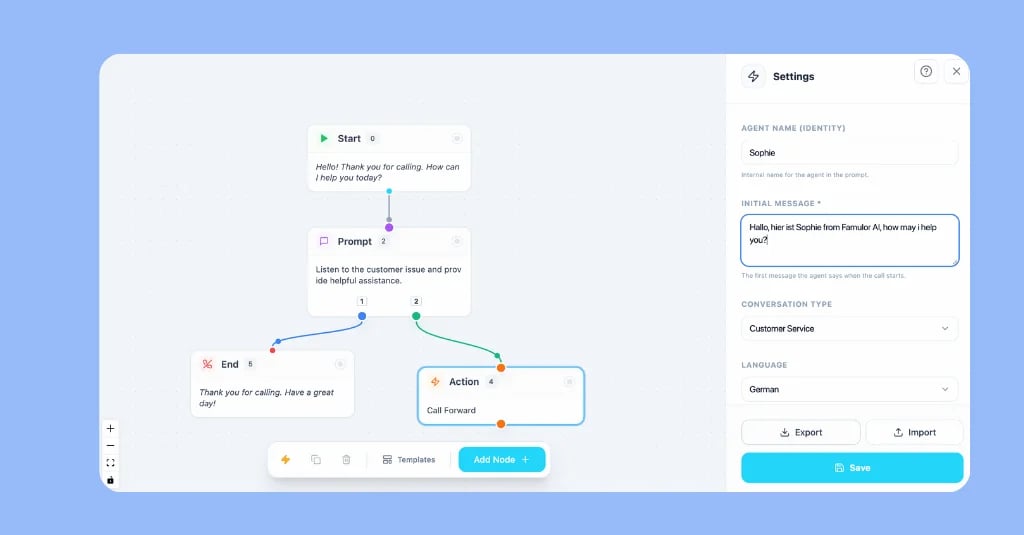
For automations, Famulor documents the following layout rules:
- The graph runs from left to right.
- Every branch receives its own row.
- For a Condition, the
truebranch sits above thefalsebranch. - Steps inside
Loop on Itemssit below itsDonebranch. - A connection that skips ahead is kept on a straight line where possible.
Only positions change. Steps, settings, connections, and branches remain in place. Source: Famulor Automations documentation.
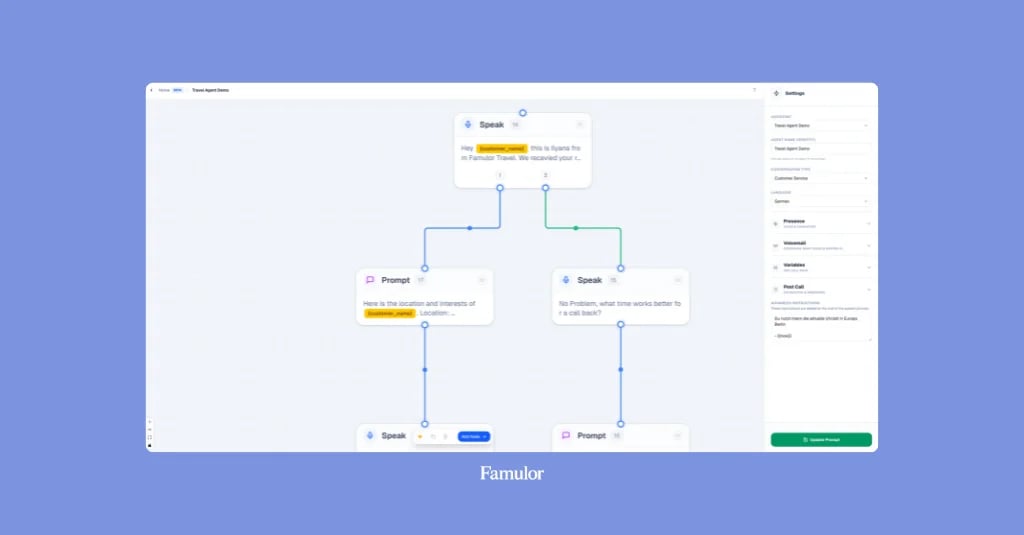
Assistant flows use a different orientation. The feature arranges nodes from top to bottom with spacing for branches and shared steps. Retry connections remain intact as well. Instructions, tools, conditions, and call settings are preserved. Source: Famulor Flow Builder documentation.
When automatic arrangement is most useful
Tidy up is especially useful after a workflow has grown and several people need to understand or maintain it. Common situations include:
- An automation contains several Conditions with success and failure paths.
- A loop processes multiple items and has a separate completion branch.
- An assistant flow supports several conversation goals, fallbacks, and shared handoff points.
- A team inherits a workflow built by another person or by Milian.
- A review needs a clear view of which connections belong together.
A clean layout improves readability, but it is not proof that the workflow works. A tidy diagram can still contain an ambiguous condition, a wrong field mapping, or an untested failure path. If you first need a general introduction, read the Famulor Flow Builder overview. For deliberate tool execution, see forcing tool calls in the Flow Builder.
Tidy an automation in the editor
The Automation Builder workflow is intentionally short:
- Open the automation you want to arrange.
- Confirm that the current steps and connections are visible on the canvas.
- Choose Tidy up beside the zoom controls.
- Review the new layout and trace every main and failure path.
- Choose Save if you want to keep the layout.
Step five matters. The editor first arranges the current draft, including steps that have not been saved yet. The layout becomes persistent only after Save. Until then, the underlying automation continues to have its last saved version.
You can also ask Milian to tidy the open automation. The documentation gives “tidy up this automation” as the example request. Milian arranges the current draft, including unsaved steps. You remain responsible for the functional review.
Arrange and center an assistant flow
The Flow Builder offers two different controls:
- Center flow brings the complete graph back into view.
- Tidy up flow calculates new positions and spacing for the entire workflow.
Center flow is useful when you have simply lost orientation on the canvas. Tidy up flow is the better choice when nodes overlap, connections are difficult to trace, or a growing flow needs to be prepared for review.
After arranging it, follow every conversation path from Start to End once. Check in particular:
- Are labels unambiguous from the caller's perspective?
- Are conditions mutually exclusive and complete?
- Is there a useful path for tool and Collect failures?
- Does every handoff still lead to the intended destination?
- Does each relevant route end at an appropriate End or Transfer step?
Tidy up does not answer these questions. It makes the graph easier to read so that you can answer them. The guide to designing intelligent conversation flows explains why clear node and edge labels matter.
Arrange saved automations through API, MCP, or CLI
Tidy up is not limited to the user interface for saved automations. Famulor documents three access paths:
| Access path | Operation |
|---|---|
| Public API | POST /api/v1/automations/{id}/graph/layout |
| MCP | tidy_automation_graph |
| CLI | famulor tidy-automation-graph <id> |
According to the documentation, the operation requires no request body. Its response reports the automation ID, whether the layout was saved, and the number of steps and connections. Read the automation afterwards if you need to inspect or process the new positions. Source: Famulor Automations documentation.
For an existing assistant flow, use POST /api/v1/assistants/{id}/flow/layout. The MCP equivalent is tidy_assistant_flow. The API arranges and saves the existing graph and requires assistant write access. Advanced flows require Flow Builder access. Source: Famulor Flow Builder documentation.
If you manage recurring workspace tasks from a terminal, the Famulor CLI guide provides a starting point. For AI clients and other MCP applications, Famulor MCP for AI agents explains the connection model.
Practical example: field-service appointment intake
A technical service business accepts emergency reports and appointment requests through a voice agent. Its assistant flow contains these paths:
- Identify the request: urgent incident or regular appointment.
- For an incident, collect the location and callback number.
- Decide by urgency: transfer to the on-call team or create a ticket.
- For an appointment, collect availability and execute a booking step.
- If a tool fails, offer an alternative or hand off safely.
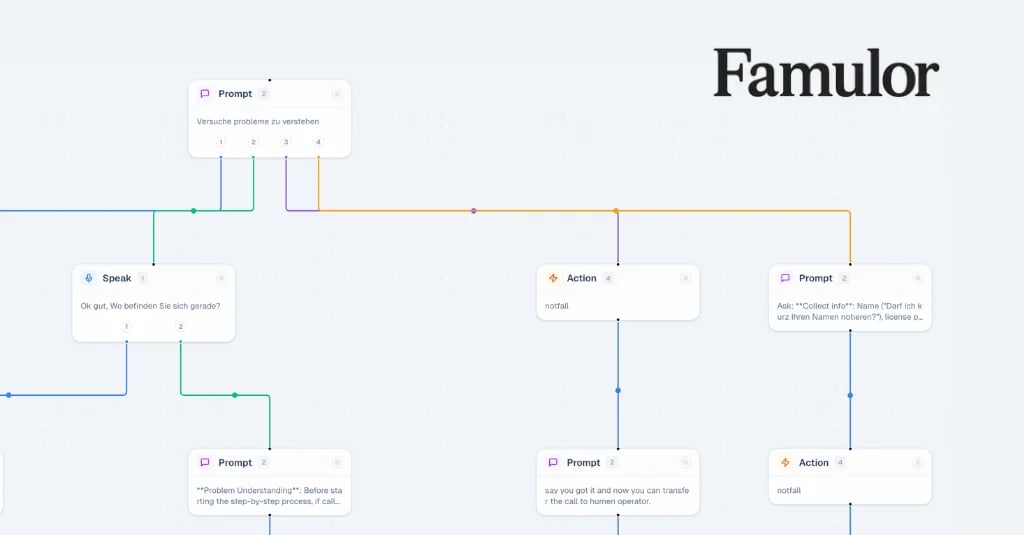
After several edits, the emergency branch, appointment branch, and retry connections overlap on the canvas. Tidy up flow arranges the existing nodes from top to bottom. The team can then trace the critical transfer route more easily. It does not change the urgency definition or the transfer destination.
After the conversation, a separate automation starts. It checks the documented outcome, creates a task where appropriate, and sends a confirmation. A Condition separates urgent and regular cases; errors from an external system follow a dedicated path. Tidy up arranges this graph from left to right and gives each branch its own row.
The practical benefit is reviewability: operations, support, and the functional team can see the route a case takes. Whether the automation works must still be verified with test runs, run history, and the actual inputs and outputs. The Automations documentation describes the available status, step sequence, input, output, error, duration, and credit information.
What Tidy up does not do
The boundary is as important as the feature:
| Tidy up does | Tidy up does not |
|---|---|
| reposition existing nodes | improve prompts or conditions |
| separate branches spatially | correct logically wrong connections |
| make flows easier to review | test tools or credentials |
| preserve retry connections | guarantee conversation quality or outcomes |
| manage layout through UI and interfaces | provide privacy or compliance approval |
The arrangement processes graph structure. According to the documentation, it does not change conversation or automation data, and it does not replace a privacy review. If you edit prompts, tool mappings, or recipients at the same time, treat those edits as a separate release and test them independently.
For phone workflows, also verify transfers, DTMF, number formats, consent, and recording under the rules for your specific use case. Moving nodes is not a new legal basis or a compliance promise.
A safe post-arrangement checklist
Use the same short review after every Tidy up operation:
- Compare the node and connection counts with the expected graph.
- Trace every main path visually once.
- Inspect Conditions, loops, retries, and failure paths.
- Check shared steps for unexpected incoming connections.
- Save only when the arrangement is understandable.
- Run a test or simulation after any functional edit.
- For live automations, inspect run history afterwards.
Because Tidy up changes positions only, changed behavior should not be treated as an expected layout effect. In that case, check whether other draft changes were saved with the new arrangement.
Conclusion
Famulor Tidy up addresses a modest but common operational problem: graphs become harder to read with every extension, even when they still work. The feature arranges automations and assistant flows predictably without rewriting their logic.
Its strongest benefit is in review and collaboration. Use Tidy up as a visual organization aid, Save as a deliberate persistence step, and tests or run history as proof of behavior. That keeps a clear boundary between what merely looks cleaner and what has actually been verified.
Frequently asked questions
Does Tidy up change my automation?
It changes the positions of existing steps. Famulor states that settings, connections, and branches remain intact. In the editor, choose Save to persist the new layout.
Can Milian arrange unsaved steps?
Yes. In an open automation or assistant editor, Milian can arrange the current draft, including unsaved steps or edits.
Does Tidy up automatically improve an assistant flow?
No. It improves the visual arrangement. Prompts, edge labels, conditions, tools, and fallbacks still require functional review and testing.
Can I run Tidy up programmatically?
Saved automations support Public API, MCP, and CLI operations. Assistant flows support API and MCP layout operations. Follow the documented access requirements.
bs-body:end
Writer at Famulor