Summarize Content With:




How to Connect Zoho CRM With an AI Voice Agent — Automate Calls and CRM Updates in One Step
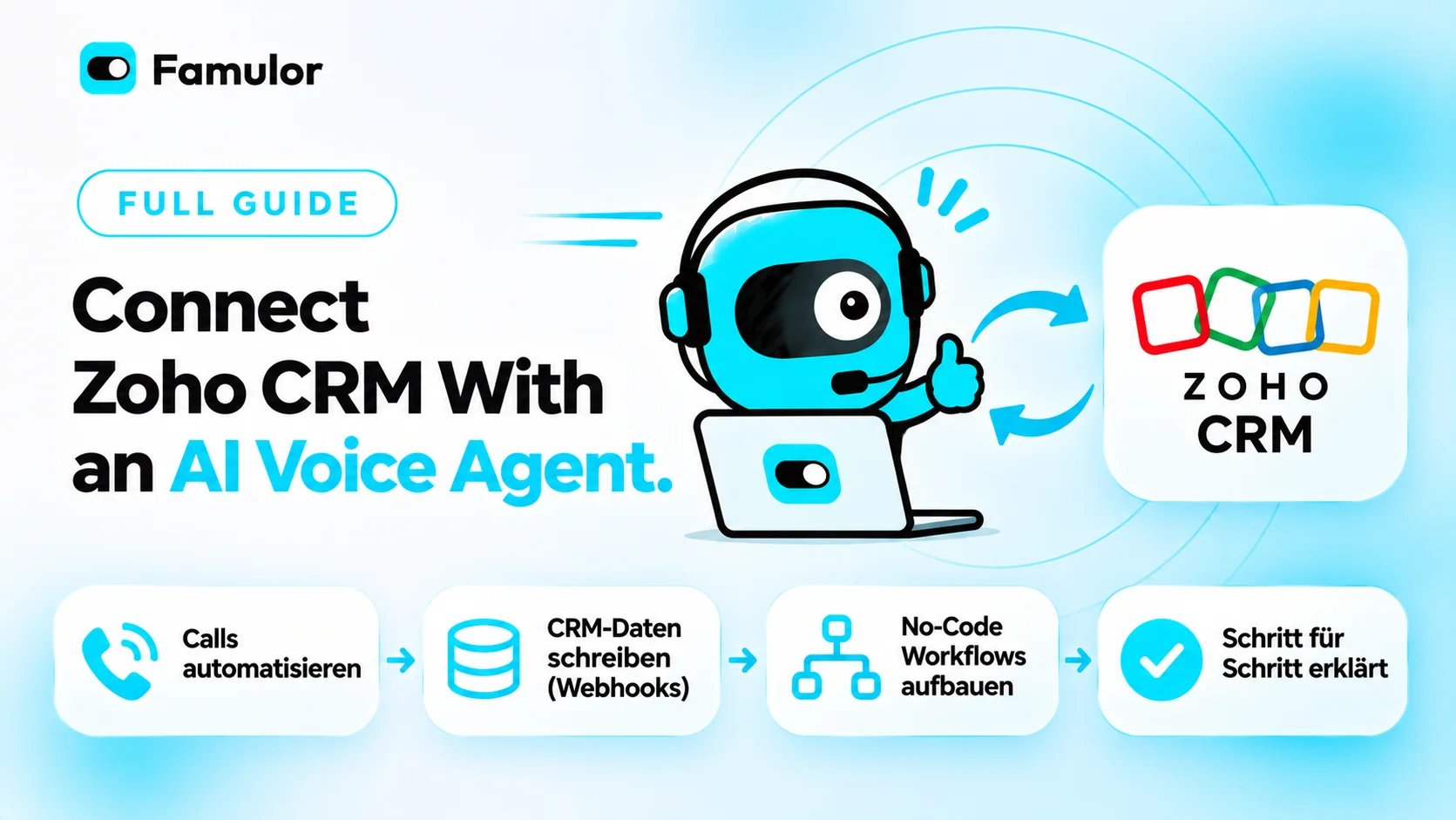
Integrating Zoho CRM with an AI Voice Agent lets you fully automate inbound and outbound phone calls while writing every piece of conversation data straight back into your CRM. The result: no manual entries, no data gaps, and a sales team that focuses on closing deals instead of updating CRM fields. Famulor offers a ready-to-use Zoho CRM connection via webhooks, Make.com, and its native no-code automation platform — no developer required.
This guide walks you through connecting Zoho CRM with an AI Voice Agent step by step, shows which data flows you can automate, and shares the best practices that keep the integration stable and valuable long term.
Why Zoho CRM and AI Voice Agents Belong Together
Zoho CRM serves over one million paying customers worldwide, making it one of the most widely used CRM systems among small and mid-sized businesses. Many teams choose Zoho because it bundles sales pipeline management, marketing automation, invoicing, and helpdesk tools in a single suite — at a fraction of what Salesforce or HubSpot charge.
The weak spot: telephony remains a manual channel in most Zoho setups. Inbound calls are handled by staff, notes are entered by hand, and follow-ups rely on calendar reminders. During outbound campaigns, sales reps dial contacts one by one, log results in spreadsheets, and copy them into the CRM later. This costs time and produces data gaps that make forecasts unreliable and follow-ups inconsistent.
An AI Voice Agent solves these problems at their root: it handles phone calls autonomously, in natural language, around the clock, and in more than 40 languages. And it writes the results back into the CRM automatically. Every call — whether an appointment booking, lead qualification, or service inquiry — becomes a structured record in Zoho.
Zoho CRM and Famulor: Integration Architecture Overview
Famulor connects to Zoho CRM in three ways. The right choice depends on your use case and how deeply you want to automate.
| Integration Method | Complexity | Typical Use Case | Real-Time? |
|---|---|---|---|
| Famulor Webhooks → Zoho Flow / Deluge | Medium | Write post-call data directly into Zoho modules | Yes |
| Famulor → Make.com → Zoho CRM API | Low | No-code scenarios with mapping, filtering, routing | Yes |
| Famulor → n8n / Zapier → Zoho CRM | Low | Simple trigger-action flows | Yes |
All three methods use Famulor's open automation platform with over 300 integrations. The difference is the level of control: webhooks offer maximum flexibility for Zoho developers, while Make.com and n8n provide the fastest path for teams without coding skills.
Step by Step: Connect Zoho CRM With Famulor
Step 1 — Create and Configure a Famulor Assistant
Create a new AI Voice Agent in Famulor that matches your use case — for example, an inbound assistant for appointment bookings or an outbound agent for lead qualification. Define the conversation flow, the language (English, German, or both), and your preferred TTS provider. Famulor supports multi-TTS with providers such as ElevenLabs, Cartesia, and Azure, so you can pick the voice that fits your brand.
Step 2 — Configure the Webhook URL
Enable the post-call webhook for your assistant in Famulor. This webhook sends a JSON payload after every completed call, including the conversation summary, extracted variables (name, phone number, email, appointment request, topic), sentiment analysis, and call duration. Point the webhook URL at a Zoho Flow endpoint or a Make.com / n8n scenario.
Step 3 — Set Up a Zoho Flow or Make.com Scenario
In the simplest case, create a new scenario in Make.com: the trigger is the Famulor webhook, followed by a Zoho CRM module that creates a new lead or activity in the right module. Map Famulor variables to Zoho fields — for example, caller_name to "First Name + Last Name", call_summary to "Description", and sentiment to a custom field. If you prefer Zoho Flow, use Zoho Flow's webhook function as the receiver and write Deluge scripts to push the data into CRM modules, Zoho Desk, or Zoho Campaigns.
Step 4 — Define Automatic Follow-Up Actions
Set up rules for follow-up actions within the automation: if a lead signals interest in a product demo during the call, automatically create an appointment in Zoho Bookings. If an existing customer reports a support issue, open a Zoho Desk ticket. If an outbound call ends with "Not interested", update the lead status in Zoho CRM to "Disqualified" and remove the contact from the campaign. You can fine-tune these rules using Famulor's CRM data quality framework.
Step 5 — Test and Go Live
Run a test call and verify that the data arrives correctly in Zoho CRM: Was the lead created? Are the field values correct? Was the follow-up action triggered? Famulor provides a call history with full transcription and webhook logs that make debugging straightforward. After successful validation, switch the assistant to live and connect it to your SIP trunk or Telnyx/Twilio number.
Use Cases: What You Can Automate With Zoho CRM and an AI Voice Agent
Connecting Zoho CRM with Famulor opens up a range of concrete automations that go far beyond simple call logging.
Inbound appointment booking for medical practices: A patient calls, the AI Voice Agent asks for their name, insurance number, and preferred appointment, checks availability in Zoho Bookings, and confirms the appointment during the call. In the CRM, a new contact is created or updated, the appointment is linked, and a confirmation SMS is triggered — through the practice's existing phone system.
Outbound lead qualification for B2B SaaS: Famulor automatically calls new Zoho CRM leads, asks three to five qualifying questions (budget, timeline, decision process), and writes the answers into custom fields. Qualified leads are automatically assigned to the responsible account executive; unqualified ones are moved into a nurturing sequence.
After-sales feedback for e-commerce: Three days after an order, the AI Voice Agent calls the customer, asks for a satisfaction score from 1 to 10, and captures open comments. The result is logged as an activity on the Zoho CRM contact. Scores below 7 automatically trigger a ticket in Zoho Desk.
Real estate agents — handling property inquiries: Prospects call the number listed on a property listing. The AI Voice Agent collects contact details, financing status, and viewing preferences, creates a lead in Zoho CRM with the matching property tag, and schedules a callback task for the agent.
Best Practices and Common Mistakes
Define field mapping before go-live: The most common mistake in CRM integrations is messy field mapping. Before the first live call, create a mapping table that assigns each Famulor variable to a specific Zoho CRM field. Use custom fields in Zoho for data that does not fit standard fields — such as "Call Sentiment", "Call Duration in Seconds", or "AI Summary".
Enable duplicate detection: When an existing customer calls, no new lead should be created. Add a check in your automation that searches for the caller's phone number: if the contact already exists in Zoho, update the record instead of creating a new one. Make.com offers a "Search" step before the "Create" step for exactly this purpose.
Anchor variable extraction in the conversation flow: The quality of CRM data depends directly on the quality of extracted variables. In Famulor's Flow Builder, define clear variable fields — first_name, last_name, email, company, appointment_date — and set validation rules (for example, an email format check) so that only clean data reaches the CRM.
Set up webhook retries: Network errors happen. Make sure your webhook receiver (Make.com, n8n, or Zoho Flow) has retry logic so that no call record is lost. Famulor lets you resend webhooks manually or automatically on failure.
Separate test data from production data: Use a separate Zoho CRM sandbox environment or a dedicated test module to validate your integration before it touches production data. This prevents test records from ending up in your live sales pipeline.
Estimate your ROI from automating calls
See how much your business could save by switching to AI-powered voice agents.
ROI Result
ROI 0%
No credit card required
Comparison: Zoho CRM Voice AI Integrations on the Market
Several providers enable the connection between Zoho CRM and an AI Voice Agent. The differences lie in integration depth, supported languages, and automation flexibility.
| Criterion | Famulor | Retell AI | Vapi | CloudTalk |
|---|---|---|---|---|
| Zoho CRM Integration | Native + Webhooks + Make/n8n/Zapier | Zoho Marketplace App | Via Zapier/Make only | Direct integration |
| Supported Languages | 40+ | ~20 | ~15 | ~10 |
| SIP Trunking | Yes (any provider) | Limited | Yes | Own infrastructure |
| No-Code Automation | Own platform + 300+ apps | Limited | API-first | Limited |
| Multi-TTS Providers | Yes (ElevenLabs, Cartesia, Azure, etc.) | Own voices | Yes | No |
| Outbound Campaigns | Yes (built-in campaign manager) | Yes | Yes (API) | Yes |
| WhatsApp/Chat Follow-up | Yes (built-in) | No | No | Limited |
Famulor stands out with its combination of a no-code automation platform, broad language support, and built-in multichannel follow-up (phone, WhatsApp, chat). For Zoho CRM users who value a seamless integration, Famulor offers the most comprehensive approach. You can find detailed integration comparisons in our guides for Salesforce, HubSpot, and Pipedrive.
Data Flow Architecture: From Call to CRM Record
To make the information flow between Famulor and Zoho CRM transparent, here is the typical chain for an inbound call:
Call comes in → Famulor AI Voice Agent picks up → Conversation flow runs (greeting, identification, topic, appointment booking) → Variables are extracted in real time → Call ends → Post-call webhook fires → Make.com/n8n receives the payload → Zoho CRM API is called → Lead/contact is created or updated → Follow-up action (appointment, ticket, email) is created → Confirmation SMS or WhatsApp is sent via Famulor.
This entire process takes less than five seconds after the call ends and requires no manual intervention. The data is instantly visible in the CRM — for sales, support, and management.
Advanced Scenarios: Leveraging the Full Zoho Ecosystem
Beyond the CRM, Zoho offers a broad ecosystem: Zoho Desk (helpdesk), Zoho Bookings (scheduling), Zoho Campaigns (email marketing), Zoho Analytics (reporting), and Zoho Creator (custom apps). Famulor's open webhook architecture lets you write data from AI phone calls not just into the CRM, but into any of these modules.
A practical example: a trades business uses Zoho CRM for customer acquisition, Zoho Bookings for on-site appointments, and Zoho Desk for complaints. Famulor handles all incoming calls: new customers are created as leads in the CRM, appointment requests are entered directly in Bookings, and complaints are logged as Desk tickets — based on the topic identified during the conversation. This saves the five-person team about 15 hours a week of manual call handling.
Conclusion
Integrating Zoho CRM with an AI Voice Agent like Famulor transforms telephony from a manual channel into an automated data source. Every call becomes a structured CRM record, every customer interaction a usable data point. Setup takes less than an hour thanks to no-code automation platforms like Make.com or Famulor's native automation — no developer needed, no IT ticket required.
For Zoho CRM users looking to scale sales and customer service without hiring additional staff, Famulor is the natural choice: 40+ languages, SIP trunking with any provider, 300+ integrations, and an automation platform that connects Zoho modules seamlessly. Start with a free demo now and see how your next call lands in the CRM automatically.
Try our AI Assistant
Experience how natural our AI phone assistant sounds.
Enter your details and receive a call from our AI agent within seconds.
Agent is trained to discuss Famulor services and book appointments.

Demo AI agent
Famulor representative
FAQ
How do I connect Zoho CRM with an AI Voice Agent?
Connect Zoho CRM via webhooks, Make.com, or Zapier to an AI Voice Agent like Famulor. The agent automatically sends conversation data, extracted contact information, and summaries to the Zoho CRM API after every call, creating leads, contacts, or activities.
What data can an AI Voice Agent send to Zoho CRM?
An AI Voice Agent can send call summaries, contact details (name, email, phone), custom variables (appointment request, budget, product interest), sentiment analysis, call duration, and transcripts to Zoho CRM — all in real time after the call ends.
Do I need coding skills for the Zoho CRM integration?
No. With no-code tools like Make.com, Zapier, or Famulor's own automation platform, you can set up the integration without writing a single line of code. For advanced scenarios using Zoho Deluge scripts, basic knowledge helps but is not required.
Can the AI Voice Agent book appointments directly in Zoho Bookings?
Yes. Through the automation platform, the agent checks availability in Zoho Bookings and books the appointment during the call — the caller receives an instant confirmation. This works for both inbound calls and automated outbound callbacks.
How do I prevent duplicates in Zoho CRM from repeat callers?
Set up a "search before create" step in your automation that matches the caller's phone number against existing Zoho contacts. If the contact already exists, the record is updated instead of creating a new lead.
Does the integration support outbound calls from Zoho CRM?
Yes. With Famulor's campaign manager, you can launch outbound campaigns directly from Zoho CRM lists. Leads are called automatically, results flow back into the CRM, and qualified contacts are assigned to sales reps.
What does the Zoho CRM integration with an AI Voice Agent cost?
The integration itself is included in Famulor's platform at no extra cost. You pay for your AI Voice Agent's telephony minutes and, if applicable, for Make.com or n8n as middleware. Zoho CRM does not charge additional fees for API access on Business plans.
How many languages does the AI Voice Agent support with Zoho CRM?
Famulor supports over 40 languages for AI phone calls. The extracted data is sent to Zoho CRM regardless of language, so you can serve international customers and consolidate results in a single CRM.

Writer at Famulor