Summarize Content With:




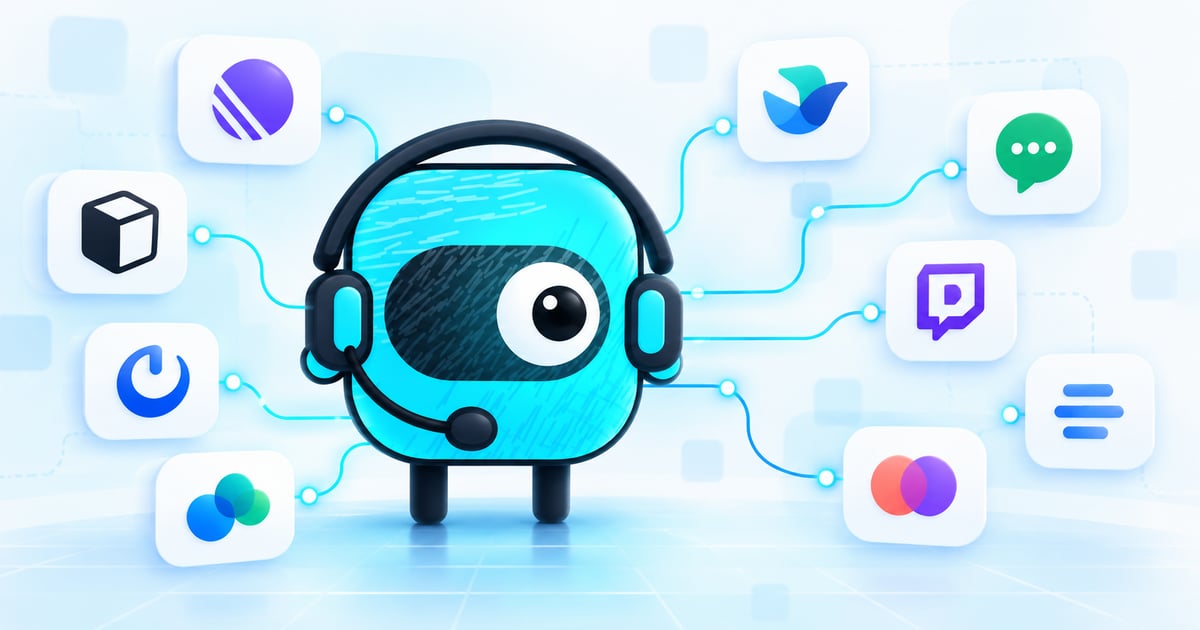
Famulor has expanded its messaging reach with ten channels: Linear, Notion, Mattermost, Webex, Lark/Feishu, LINE, Twitch, Sendblue, Linq and Zernio. The same assistant can now respond where work and customer conversations already happen, such as a Linear issue, a Notion comment or a Webex space. Famulor documented the release on October 24, 2026 in its changelog.
The value is not simply the number of channels. A messaging connector is the controlled bridge between a provider thread and a selected Famulor assistant. The assistant works inside the existing context, uses its approved knowledge and text-safe tools, and leaves the conversation visible in Famulor History. That creates an operational service process rather than another isolated bot. The article on Instagram and Messenger in one inbox shows how the same principle extends to external social direct messages.
What changes with the 10 new channels
Teams previously had to copy many requests from their working context into a separate chat. With the new channel connectors, an assistant can respond to the relevant event directly. The messaging channels overview describes a shared operating model: incoming messages go to the selected assistant, responses stay text-based, and each conversation is recorded in History.
The ten new channels support different working patterns:
| Channel | Typical entry point | Useful application |
|---|---|---|
| Linear | @mention in an issue comment | Triage, next steps, response drafts |
| Notion | Manually typed @mention in a comment | Wiki questions, project and customer briefs |
| Mattermost | Public channel or trigger word | Internal help desk, operations room |
| Webex | Direct message or @mention in a space | Internal service and team support |
| Lark / Feishu | Direct message or group mention | International teams and internal requests |
| LINE | Message to a LINE Official Account | Customer service in LINE-centric markets |
| Twitch | @mention in chat, optionally a whisper | Community questions during a stream |
| Sendblue | iMessage, RCS or SMS | Text-based mobile customer service |
| Linq | iMessage or SMS | Direct customer conversations by mobile message |
| Zernio | Social direct messages from one inbox | Consolidated social support requests |
This table is a functional guide, not a promise that every channel has identical capabilities. Each provider has its own triggers, permissions and constraints. Always review the relevant channel guide before enabling a production connection.
Who benefits most from this update
The new connectors are particularly relevant to service, operations and product teams whose work does not begin in a conventional support inbox.
A product team can ask questions about a defect inside the relevant Linear issue. An operations team can involve an assistant in a public Mattermost channel. In Notion, the assistant can respond to a specific comment discussion without editing the page itself. In Webex, it can answer direct messages and explicit mentions in spaces.
LINE, Sendblue, Linq and Zernio add routes for external conversations. A sensible rollout still should not start with all ten at once. Begin where there is already a clear recurring question type and an accountable business owner. For the broader relationship between phone, WhatsApp and chat, see the guide to an omnichannel AI phone assistant.
Setup: from assistant to production channel
Provider configuration varies, but the core pattern is consistent.
1. Bound the use case and assistant
First define which questions the assistant may answer. An internal service assistant might cover process questions, known incidents and documented standard procedures. Attach only the knowledge sources and tools needed for that scope. A cross-channel architecture does not replace role and permission design.
The Famulor knowledge base guide explains how to structure existing information. Operational tools should each be limited to a clear purpose.
2. Connect the channel in Settings
Open Settings → Channels, choose the connector, name the connection and assign an assistant. The channel is available when the workspace plan includes it; verify availability in your workspace. Depending on the provider, the next step uses OAuth, a bot token, an API key or a webhook.
Those differences matter:
- Linear requires a personal API key, webhook signing secret and Comment webhook according to the Linear guide. The assistant works in issue comments but does not create issues on its own.
- Notion requires an internal connection with read and insert-comment permissions according to the Notion guide. Every relevant page must be shared with the connection. The assistant does not edit page content.
- Mattermost uses a bot account and outgoing webhook according to the Mattermost guide. This route applies to public channels, not direct messages or private channels.
- Webex requires a bot and two webhooks according to the Webex guide: one for new messages and one for attachment actions. In group spaces, the assistant only responds to mentions.
Treat tokens and webhook secrets like other credentials: store them only in the intended fields, restrict access and rotate them if exposure is suspected.
3. Set conversation controls deliberately
Text channels share common conversation settings. Famulor documents a default response delay of five seconds, allowing a quick series of messages to be merged into one reply, and 30 minutes of inactivity before the conversation is marked ended. Both values are configurable and should match the channel's working rhythm.
An operations channel may tolerate a short delay, while a customer channel with multi-part messages may benefit from moderate bundling. An optional conversation-ended webhook can start follow-up processes after a conversation closes. Enable it only with a defined recipient and documented purpose.
4. Test realistic cases
Do not stop at one friendly example. Include at least:
- a question with a clear approved answer,
- an ambiguous or incomplete request,
- a question outside the approved knowledge,
- a request for human takeover,
- a second message in the same thread.
Then use History to verify the thread, response, analysis and manual-intervention path. The channel should go live only after the refusal and escalation routes work as intended.
A realistic workflow
Consider a software company with an internal support assistant. A customer-success colleague mentions it in a Linear issue: “@support-bot Which details are missing before we escalate this?”
The connector passes the comment and relevant thread to the selected Famulor assistant. The assistant consults its approved knowledge, identifies the missing details and replies in the issue. A follow-up in that thread remains part of the conversation. At the same time, the exchange is visible in History, where a team member can pause the AI and take over manually.
If the next question concerns billing, the assistant can hand it to a specialist assistant when configured. Famulor documents that transfer to another assistant also works in messaging channels: the target continues in the same thread with its own instructions, knowledge and tools.
This model complements deliberate cross-channel customer memory, but it does not replace it. A thread solves immediate conversational context; persistent customer or case information still requires an intentional data model.
Limits to understand before rollout
Wider reach does not mean every channel can do everything.
Messaging is not telephony
Text-safe tools are available in messaging channels, including API and MCP tools, knowledge search, calendars and selected built-ins. Voice-specific actions such as a phone-number transfer, DTMF or payment-card collection are unavailable according to the messaging documentation. A switch to phone support therefore needs a separate, explicit route.
Attachment handling is bounded
When a channel supplies an accessible audio or image attachment, Famulor can transcribe speech and describe the image. The documentation specifies up to five attachments per message and 10 MiB per attachment. PDFs, videos and other files are not analyzed by this attachment feature. Processing also depends on the channel exposing a downloadable file.
Replies from History have additional channel-specific constraints. The release notes document one file of up to 3 MB in the thread for Mattermost, Webex, Linq and Notion. File delivery should not be treated as a universal escalation path.
Permissions and privacy remain your responsibility
A connector sees only what provider permissions and your sharing choices allow. Notion makes this especially clear: a page becomes available only after it is shared with the connection. Apply the same principle throughout the rollout—least privilege, separate test and production connections, and regular review of unused tokens.
Also decide which data may be written back to the channel. An internal issue thread is not automatically the right destination for sensitive customer or employee information. Review retention, access, purpose and human takeover against your own privacy and security requirements. A connector by itself is not a compliance guarantee.
Mentions and threads behave differently
Linear, Notion, Twitch, Mattermost, Webex and Lark use different triggers. Some respond to @mentions, others to direct messages, public channels or trigger words. The Notion guide also notes that the connection bot is not selected from the @ menu; users type the name manually. Give the team a brief operating note for each enabled channel.
Industry use case: internal service across a branch network
Imagine a multi-location company that provides IT and process support to its branches. Product defects are tracked in Linear, operating knowledge lives in Notion, and quick questions arrive in Webex or Mattermost.
Instead of building four independent bots, the company assigns one narrowly scoped service assistant to the relevant connectors. It answers documented standard questions, points to the next approved step and gathers missing details. Complex or sensitive cases go to a person or a specialist assistant.
The customer benefit is lower friction: employees remain in the tool they already use, while the service team can review responses and interventions centrally in History. Whether that makes the process faster or less expensive must be measured with the company's own metrics; Famulor does not publish a universal benchmark for this scenario.
Rollout checklist
- Choose one clear use case and one channel first.
- Limit knowledge, tools and allowed data to the necessary minimum.
- Follow the exact provider guide and use a dedicated bot or connection.
- Test thread continuation, unanswerable questions and human takeover.
- Review History, analysis and the optional conversation-ended webhook.
- Document triggers, attachment limits and the route to a person.
- Expand to the next channel only after the first one is stable.
Conclusion
Famulor's ten new channels bring an assistant to the places where teams already work. The update is especially useful for processes that begin in issues, comments, spaces or mobile messages and should not be moved into a separate support portal. Teams that also manage connections through an API or command line can use the separate Famulor CLI guide.
A successful rollout still starts small: one channel, one defined question type, minimum permissions and a tested handoff path. That turns “available everywhere” into a dependable service process rather than merely a longer integration list.

Writer at Famulor