Inhoud samenvatten met:




Ja. Onder Instellingen → Werkruimte → Datamigratie krijg je eerst een voorbeeld te zien, gevolgd door inactieve kopieën. Het bronaccount blijft behouden. Controleer eerst de schil op het scherm: naam, prompt, begroeting, taal. Een testgesprek is pas mogelijk nadat je de assistent hebt geactiveerd.
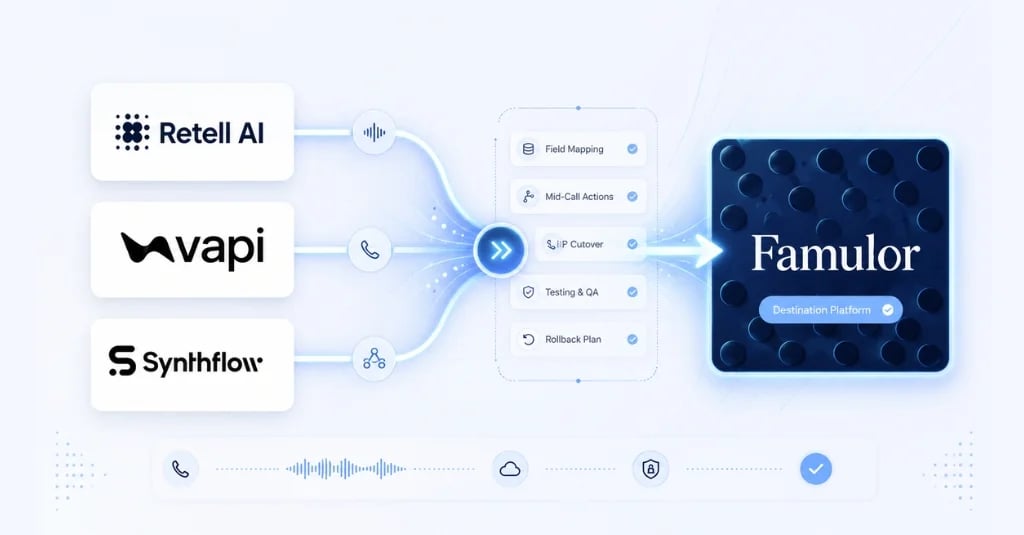
Kan ik Retell, Vapi of Synthflow-assistenten importeren naar Famulor?
Ja. Als eigenaar of beheerder open je Instellingen → Werkruimte → Datamigratie. Er is geen beperking op basis van je abonnement. Je bekijkt een voorbeeld van Retell, Vapi of Synthflow-assistenten, kiest welke je wilt kopiëren en Famulor maakt inactieve kopieën aan. Het bronaccount blijft ongewijzigd. Afhankelijkheden worden gemarkeerd voor beoordeling.
De UI-handleiding voor dit paneel is Migreren van Retell AI, Vapi of Synthflow. De openbare pagina's voor Retell, Vapi en Synthflow openen dezelfde ingelogde app; de CTA's voegen &migration=retell, &migration=vapi of &migration=synthflow toe aan de URL van de werkruimte. Een AI-telefoonassistent die hier wordt aangemaakt, is een inactieve kopie die je kunt vergelijken, geen directe vervanger voor de productielijn.
Waar vind ik Datamigratie?
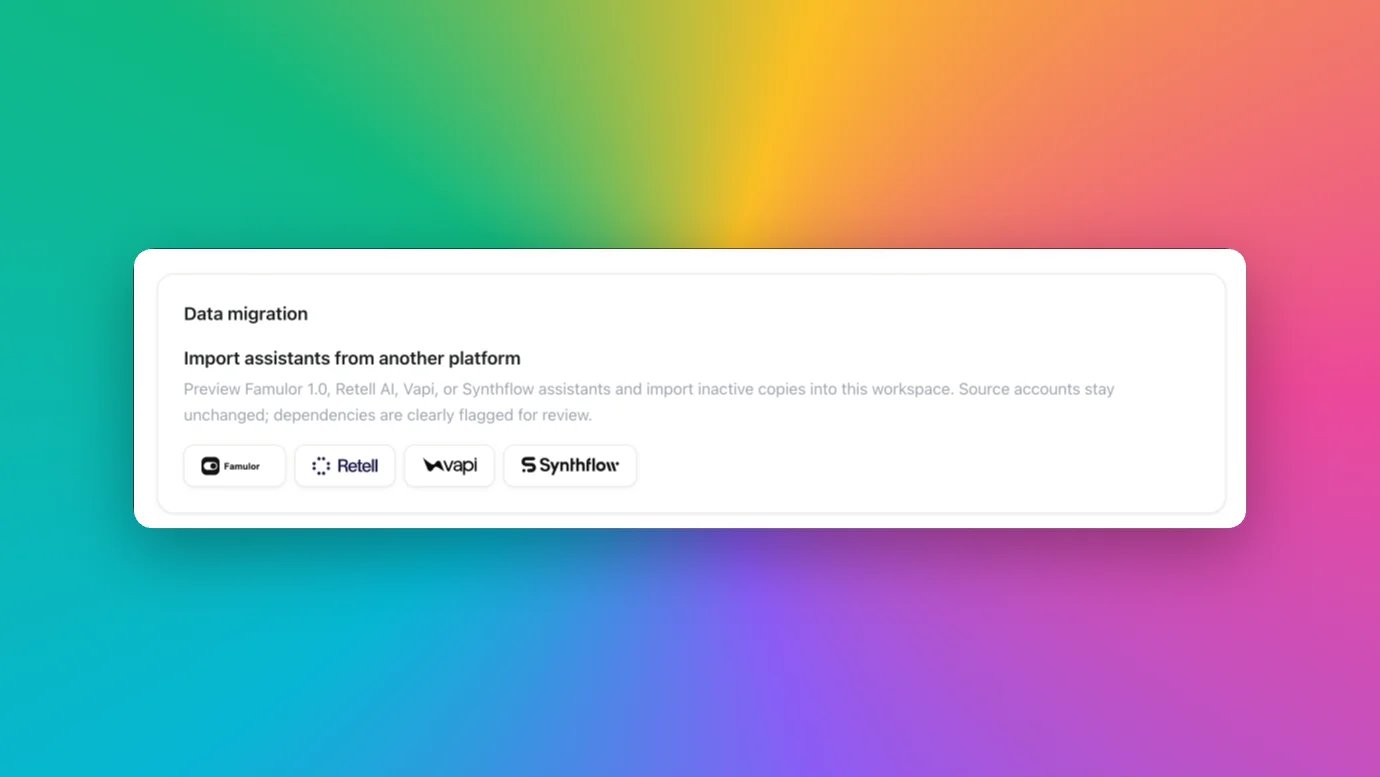
Open Instellingen → Werkruimte → Datamigratie. In de app bevindt dit blok zich op app.famulor.io/settings?panel=workspace. Alleen eigenaars en beheerders kunnen dit zien. Er is geen beperking op basis van je abonnement. De titel van het blok is Datenmigration, met als ondertitel “Assistants von einer anderen Plattform importieren”.
De zichtbare tekst: bekijk een voorbeeld van Retell AI, Vapi of Synthflow-assistenten en importeer inactieve kopieën naar deze werkruimte. Bronaccounts blijven ongewijzigd; afhankelijkheden worden gemarkeerd voor beoordeling.
Het dialoogvenster is voor alle drie de aanbieders hetzelfde: sleutel invoeren, voorbeeld bekijken, daarna inactieve kopieën. De beoordelingslijst verschilt: Vapi markeert transcriptie, squads en workflows; Synthflow markeert acties en widgets. Er is geen 1-op-1 import van het stroomdiagram.
Voer de aanbiedersleutel alleen in het wachtwoordveld van het ingelogde dialoogvenster in. Deze is alleen van toepassing op het huidige verzoek, gaat server-side naar de leverancier, wordt niet opgeslagen, niet gelogd, niet geretourneerd en niet naar Milian verzonden. Na de import wordt het dialoogvenster gewist. Plak de sleutel nooit in Milian of een andere chat.
Wat wordt er geïmporteerd en wat blijft over voor beoordeling?
Je krijgt een schil, geen kant-en-klare productieversie. Wat wordt gekopieerd: de naam, de systeemprompt, de begroeting (alleen als dit overdraagbare tekst is), de primaire taal en compatibele instellingen. Stem en model worden overgenomen als standaardinstellingen van de werkruimte, niet uit de bron. Tools van de bron worden niet gekopieerd.
De begroeting wordt alleen gekopieerd als het overdraagbare tekst is: geen begroeting die door de gebruiker wordt gestart, geen audio-URL en geen niet-statische Synthflow-begroeting.
Compatibele instellingen: temperatuur bij Retell en Vapi, stemsnelheid en maximale gespreksduur. Bij Synthflow ook opname en tijdzone.
Wat wordt gekopieerd:
- Naam van de assistent
- Systeemprompt
- Begroeting (alleen als overdraagbare tekst)
- Primaire taal
- Compatibele instellingen (temperatuur bij Retell en Vapi, stemsnelheid, maximale gespreksduur; bij Synthflow ook opname en tijdzone)
Alleen gemarkeerd, niet geïmporteerd:
- Tools en acties
- Kennis
- Stroomdiagram (Retell-stromen alleen als prompttekst, geen 1-op-1 in de builder)
- Squads
- Widgets
- Stemmen
- Modellen
- Nummers
- Routering
- Webhooks
- Variabelen
- Inloggegevens
Stromen die je later beoordeelt of herbouwt in de Flow Builder: de importeur maakt deze niet aan. De lijst met koppelingen staat in de documentatie voor migratie van aanbieders.
Blijft mijn Retell, Vapi of Synthflow-account intact?
Ja. De import wijzigt het bronaccount niet. Retell, Vapi of Synthflow blijven live en kunnen gesprekken blijven afhandelen terwijl je de inactieve kopie in Famulor beoordeelt. De overstap (nummer, SIP, routering) is een aparte stap en maakt geen deel uit van de import.
Parallel draaien is de normale werkwijze. Als je nog aanbieders aan het vergelijken bent, gebruik dan Alternatieven, Retell, Vapi en Synthflow. Deze pagina's vervangen noch het voorbeeld, noch de latere test nadat je hebt geactiveerd.
Hoe test ik het verschil na de import?
Beoordeel eerst de schil op het scherm: naam, prompt, begroeting, taal. Kies daarna een stem. Activeer vervolgens de assistent. Een testgesprek is pas mogelijk nadat je de assistent hebt geactiveerd.
Inactief betekent dat de assistent bestaat, uitgeschakeld blijft en geen nummer heeft. Totdat je activeert, blijven uitgaande gesprekken, inkomende gesprekken, web-calls, simulaties, WhatsApp Voice en e-mailantwoorden geblokkeerd. De UI na import: kies een stem, activeer en test.
Terwijl de kopie inactief is, is er geen testgesprek en geen simulatie mogelijk. Het bronaccount blijft live. Schakel de oude assistent hiervoor niet uit.
Wanneer is de assistent daadwerkelijk live?
Niet op het moment van importeren. De kopie bestaat, maar is inactief en heeft geen nummer. Hij is pas klaar voor vergelijking nadat je een stem hebt gekozen en de assistent hebt geactiveerd. Een testgesprek is pas mogelijk nadat je hebt geactiveerd. Productieverkeer start pas wanneer je zelf het nummer, de SIP en de routering verplaatst; dat is de overstap, niet de import.
Import is geen overstap. Je koppelt een nummer afzonderlijk; het pad is Voice AI-migratie zonder downtime: overstapplan voor SIP, nummers en integraties.
Wat is het verschil met het grote migratie-draaiboek?
Deze handleiding is de instructie voor het product: waar het blok zich bevindt, dat het voorbeeld eerst komt, dat je inactieve kopieën krijgt en dat je de schil op het scherm beoordeelt voordat je activeert. De documentatie is de UI-handleiding. Het enterprise-draaiboek is het operationele project daarna.
Als je de overstap als operatie behandelt, lees dan Retell AI, Vapi en Synthflow migreren: het enterprise-draaiboek. Als je nummers en routering verplaatst, houd je dan aan het overstapplan. Deze pagina is alleen voor de importeur in Instellingen → Werkruimte → Datamigratie.
Veelgestelde vragen
Kan ik Retell, Vapi of Synthflow-assistenten importeren naar Famulor?
Ja. In het voorbeeld selecteer je assistenten voordat Famulor iets aanmaakt. Inactieve kopieën komen in de werkruimte terecht. Het bronaccount blijft behouden. Alleen voor eigenaars of beheerders, zonder beperking op basis van abonnement. De stappen staan in de documentatie voor migratie van aanbieders.
Waar vind ik Datamigratie?
Onder Instellingen → Werkruimte → Datamigratie, in de app op app.famulor.io/settings?panel=workspace. Het blok is getiteld Datenmigration, met als ondertitel “Assistants von einer anderen Plattform importieren”. Daar kies je Retell AI, Vapi of Synthflow. Hetzelfde dialoogvenster: sleutel, voorbeeld, inactieve kopieën.
Wat wordt er geïmporteerd en wat blijft over voor beoordeling?
Naam, systeemprompt, begroeting (alleen als overdraagbare tekst), primaire taal en compatibele instellingen. Stem en model zijn standaardinstellingen van de werkruimte, niet die van de bron. Tools, kennis, stroomdiagram, squads, widgets, stemmen, modellen, nummers, routering, webhooks, variabelen en inloggegevens worden alleen gemarkeerd, niet geïmporteerd. Retell-stromen komen alleen als prompttekst, niet 1-op-1 in de builder.
Blijft mijn Retell, Vapi of Synthflow-account intact?
Ja. De import wijzigt het bronaccount niet. De sleutel is alleen van toepassing op het huidige verzoek, gaat server-side naar de leverancier, wordt niet opgeslagen, niet gelogd, niet geretourneerd en niet naar Milian verzonden. Na de import wordt het dialoogvenster gewist. Gesprekken blijven op de bron totdat je ze zelf verplaatst.
Hoe test ik het verschil na de import?
Beoordeel eerst de schil op het scherm: naam, prompt, begroeting, taal. Kies een stem. Activeer de assistent. Een testgesprek is pas mogelijk nadat je hebt geactiveerd. Terwijl de assistent inactief is, blijven uitgaande gesprekken, inkomende gesprekken, web-calls, simulaties, WhatsApp Voice en e-mailantwoorden geblokkeerd.
Wanneer is de assistent daadwerkelijk live?
Pas nadat je een stem hebt gekozen en de assistent hebt geactiveerd. Een testgesprek is pas mogelijk nadat je hebt geactiveerd. Import alleen is geen overstap. Nummer, SIP en routering blijven een aparte stap; dat is het artikel over de overstap.
Wat is het verschil met het grote migratie-draaiboek?
Dit artikel legt de in-app importeur uit. Het draaiboek is het enterprise-project. Het overstapplan is de verplaatsing van nummer en SIP. De documentatie is de UI-handleiding voor voorbeeld en import. De drie teksten vervangen elkaar niet.
Open de werkruimte-instellingen, importeer één inactieve kopie, beoordeel de schil op het scherm, kies een stem, activeer en beslis dan. Als je de stroom een keer wilt zien, boek dan een demo. DPA en Trust Center blijven hun eigen pagina's: DPA, Trust Center.

Auteur bij Famulor