Résumer le contenu avec:




Famulor Translate connecte deux personnes parlant des langues différentes : chacune entend l'autre en direct dans sa propre langue, que ce soit via le navigateur ou par téléphone. L'interlocuteur 1 est l'utilisateur de l'espace de travail qui ouvre la salle ; l'interlocuteur 2 rejoint en tant qu'invité sans avoir besoin de compte. Chemin d'accès : Paramètres → Mode moteur → Traduction. Choisissez ensuite les langues et les voix, sélectionnez Ouvrir la salle de traduction, définissez le mode de connexion de chaque personne, puis choisissez Démarrer la conversation.
Qu'est-ce que Famulor Translate ?
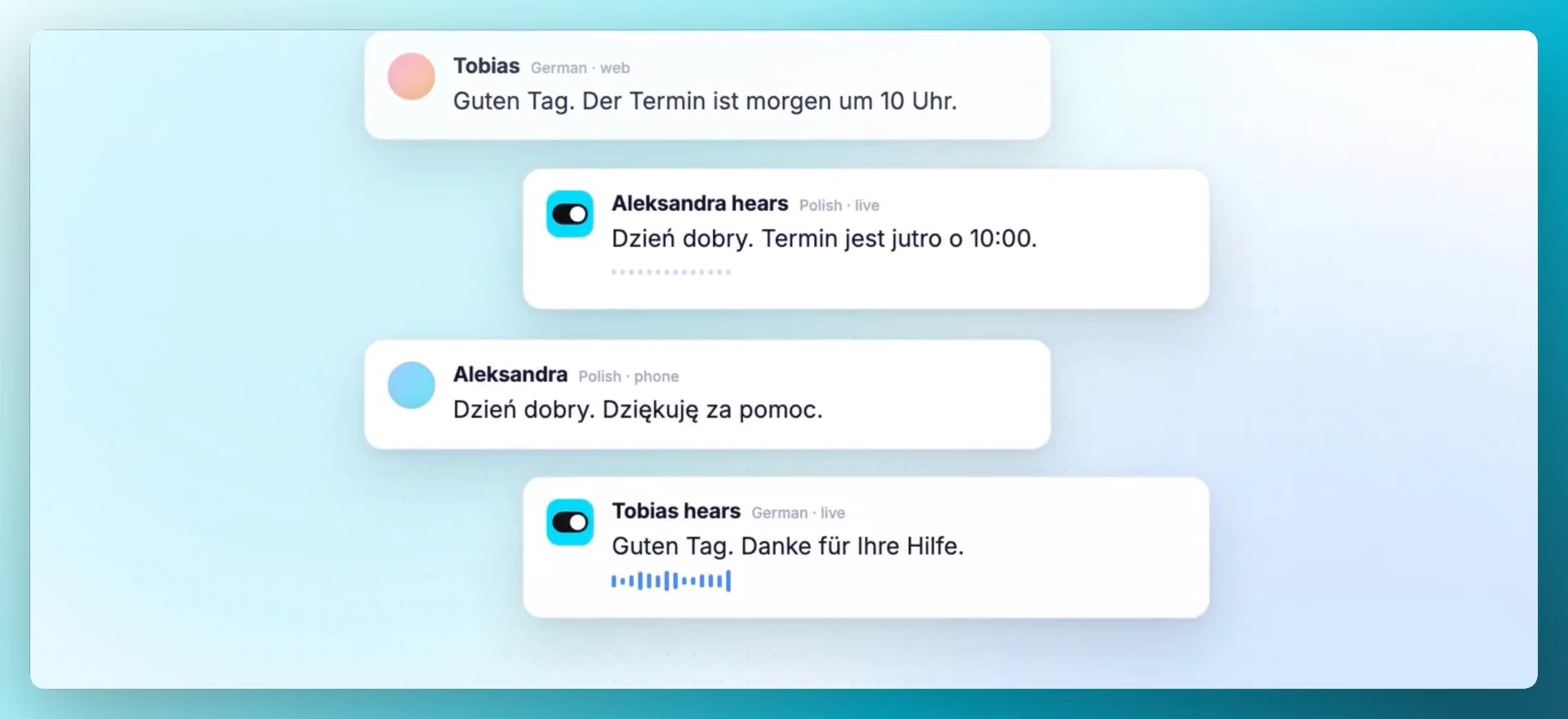
Famulor Translate est un mode moteur dédié aux conversations interprétées en direct entre deux personnes. Par exemple, Tobias parle allemand et Aleksandra parle polonais : Tobias entend l'allemand, Aleksandra entend le polonais. Dans l'interface, ce mode est nommé Traduction ; les plans peuvent inclure le mode Traduction de manière indépendante. Les paramètres de prompt, de flux, d'outils, de connaissances, de mémoire et de conversation habituelle de l'assistant sont masqués dans ce mode, mais leurs valeurs enregistrées sont conservées lorsque vous revenez au mode standard.
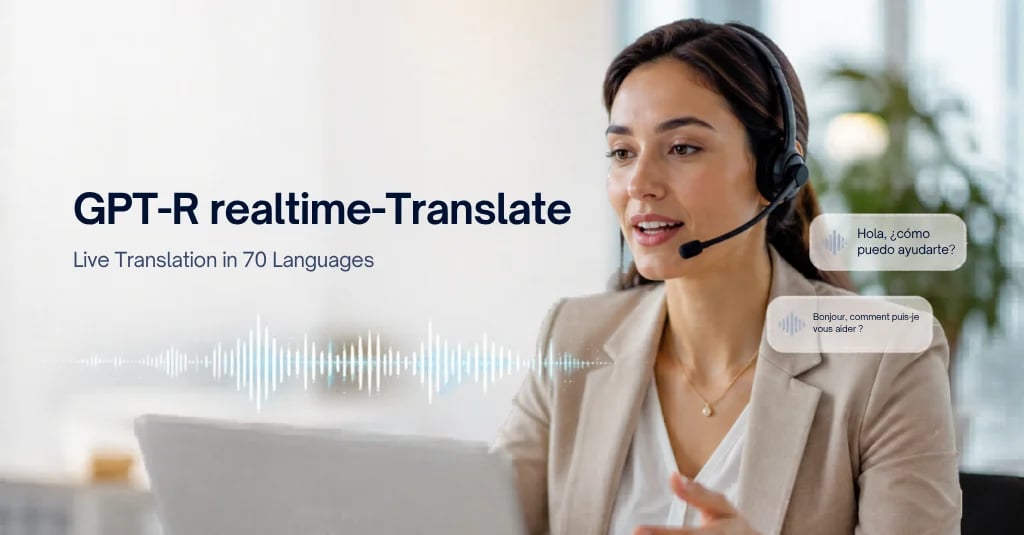
Sur un sujet connexe mais différent, l'article sur GPT-Realtime-Translate et la traduction en direct en 70 langues traite des modèles en temps réel. Cet article constitue le guide pratique du mode moteur Traduction. Aperçu des fonctionnalités : Traduction IA. Guide pratique : Documentation sur la traduction.
Comment fonctionne la traduction d'appels en direct ?
Vous choisissez la langue parlée et la voix de traduction pour les deux interlocuteurs. La voix sélectionnée pour un interlocuteur représente cette personne dans la langue de l'autre. Utilisez une voix de la bibliothèque ou un clone de voix autorisé de votre espace de travail ; le sélecteur affiche les voix compatibles avec la langue de l'auditeur. Une voix privée de l'espace de travail peut s'adresser à un invité sans que celui-ci n'ait accès à la bibliothèque de voix.
La salle affiche le texte original à côté de sa traduction au fur et à mesure que les phrases sont complétées. Les phrases terminées sont enregistrées dans l'historique ; ouvrez une entrée de traduction active pour revenir à la salle en direct. La fonction Traduction ne diffuse pas l'audio original de l'autre personne. Si la traduction ne peut pas se poursuivre, la salle signale l'interruption au lieu de transmettre un discours non traduit. Guide rapide : Famulor Translate sur YouTube.
Web, appel ou numéro entrant : comment les deux personnes se connectent-elles ?
Trois options : Web avec microphone et casque ; Appel via un numéro sortant connecté (l'hôte saisit le numéro international ; le lancement de la conversation appelle cette personne, l'un ou l'autre pouvant utiliser un téléphone) ; Numéro entrant avec un numéro entrant actif sur l'assistant de traduction et le code de salle à six chiffres, en incluant le zéro initial le cas échéant. Le numéro entrant ne nécessite pas de numéro sortant. L'invité peut utiliser le Web ou l'Appel avec l'une des options de l'interlocuteur 1.
L'hôte invite via un lien privé ou par e-mail ; l'invité n'a besoin d'aucun compte. Les invités peuvent lire la transcription en direct mais ne peuvent pas modifier les langues ou les voix, passer des appels, envoyer des invitations ou mettre fin à la conversation. L'enregistrement et le consentement sont des paramètres distincts : si le consentement est activé, chaque personne entend un avis dans sa langue et répond verbalement ; l'enregistrement ne démarre que si les deux parties sont d'accord.
Combien coûte la traduction et pourquoi le tarif n'est-il pas doublé ?
Une minute de conversation partagée utilise le tarif vocal normal plus le supplément de traduction, facturé une seule fois. Les deux interlocuteurs ne doublent pas ce coût partagé. Les observateurs de transcription ne génèrent aucun frais. La participation par téléphone ajoute les frais d'opérateur applicables par connexion effective : aucun pour le web-vers-web, un pour le web-vers-téléphone, deux pour le téléphone-vers-téléphone. Les tarifs actuels sont disponibles sous Utilisation. La fonction Traduction doit être incluse dans votre plan actuel ; un mode verrouillé reste visible et ouvre la page du plan.
Quand est-il judicieux d'utiliser la Traduction plutôt qu'un interprète classique ?
Lorsque vous avez besoin d'une conversation bilingue rapide, comme pour un appel commercial, un support ou une synchronisation avec un partenaire, et que vous ne réservez pas un interprète assermenté pour une négociation ou une audience officielle. La Traduction ne remplace pas l'interprétariat assermenté ou judiciaire. Pour de nombreuses situations quotidiennes, essayer une fois est souvent moins cher et plus rapide que d'organiser un interprétariat classique : ouvrez une salle, invitez l'invité, parlez.
Pour une vue d'ensemble de la voix et de la téléphonie, consultez l'assistant téléphonique IA et la tarification. Conformité : Centre de confiance et DPA.
Comment démarrer ma première salle de traduction ?
Étapes :
- Ouvrez un assistant et choisissez Paramètres → Mode moteur → Traduction.
- Définissez la langue et la voix de traduction pour l'interlocuteur 1 et l'interlocuteur 2.
- Sélectionnez Ouvrir la salle de traduction ; la salle s'ouvre dans un nouvel onglet.
- Choisissez Web, Appel ou Numéro entrant, invitez votre invité et sélectionnez Démarrer la conversation.
Entrée du journal des modifications : Parlez naturellement entre les langues avec la Traduction.
FAQ
Qu'est-ce que Famulor Translate ?
Un mode moteur pour des conversations interprétées en direct entre deux personnes. Chacun entend l'autre dans sa propre langue. Les plans peuvent inclure le mode Traduction.
Comment fonctionne la traduction d'appels en direct ?
Définissez les langues et les voix, ouvrez la salle de traduction, invitez l'invité, démarrez la conversation. L'original et la traduction apparaissent côte à côte ; l'historique stocke les phrases terminées.
Web, appel ou numéro entrant : comment les deux personnes se connectent-elles ?
Web dans le navigateur ; Appel avec un numéro sortant ; Numéro entrant avec un numéro d'appel et un code à six chiffres. L'invité n'a pas besoin de compte.
Combien coûte la traduction et pourquoi le tarif n'est-il pas doublé ?
Tarif vocal plus supplément de traduction une fois par minute partagée, non doublé pour deux interlocuteurs. Observateurs de transcription gratuits. Téléphone par connexion. Tarifs sous Utilisation ; la Traduction doit être dans votre plan.
Quand est-il judicieux d'utiliser la Traduction plutôt qu'un interprète classique ?
Lorsque vous souhaitez une conversation bilingue rapide. Pas pour l'interprétariat assermenté ou légalement mandaté. L'essayer une fois permet de voir si le flux convient.
Comment démarrer ma première salle de traduction ?
Paramètres → Mode moteur → Traduction, définissez les langues, ouvrez la salle de traduction, invitez l'invité, démarrez la conversation. Détails dans la documentation.
Essayez une salle : vidéo Famulor Translate, guide pratique dans la documentation sur la traduction, page de fonctionnalité Traduction IA, ou réservez une démo.

Rédacteur chez Famulor